Appearance
Stop one customer inside a saved Lifecycle when a chosen event happens. The rest of the audience is not stopped. The rule acts on customers who have entered the Lifecycle and are still moving through it, and it applies whatever the campaign Status is.
Before you start: save the campaign once. On a new unsaved record the other tabs stay closed, and the note reads “The other tabs open after the first save.” The brand also needs an event in its catalogue. If the list says “No events in this brand’s catalogue”, install an event pack first.
- Open the saved Lifecycle. Open the tab Stop & conversion.
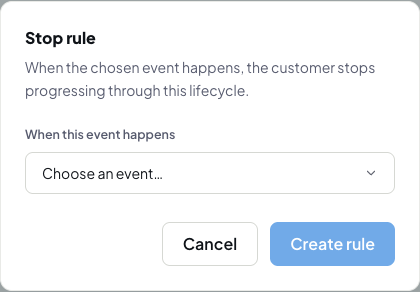
- Press Stop rule. The dialog title is Stop rule. The line under it reads “When the chosen event happens, the customer stops progressing through this lifecycle.”
- When this event happens starts on Choose an event…. While the catalogue is loading it says “Reading the event catalogue…”. Pick the event.
- Press Create rule. While it saves, the button reads Creating…. Cancel closes the dialog without adding a row. Create rule stays off until an event is chosen.
- The table column is Rule. The new row is titled Stop, and the line under it reads When, the event name, and “happens”. The footer counts the rules on this campaign.
An empty tab says No stop or conversion rules yet, then “Add a rule to control when the lifecycle stops or counts a conversion.”
To remove one, open the row menu and press Delete. The refresh control reloads the list.
The rule does not act on the event that entered the journey. A deposit that starts the campaign does not also stop it. The next deposit does. The same is true for a scheduled, manual or timer entry: only a later event stops the customer.
Warning
A Broadcast has the same tab and the same dialog, but it sends to its audience in one batch and nobody moves through it, so a Stop rule on a Broadcast has no one to stop. Use it on a Lifecycle. A Conversion rule on the same tab does not stop the customer. That button counts a conversion and leaves them in the campaign.