Appearance
See the problems on the active brand that still need a person, and mark one as seen or dealt with. An alert whose cause has gone closes itself.
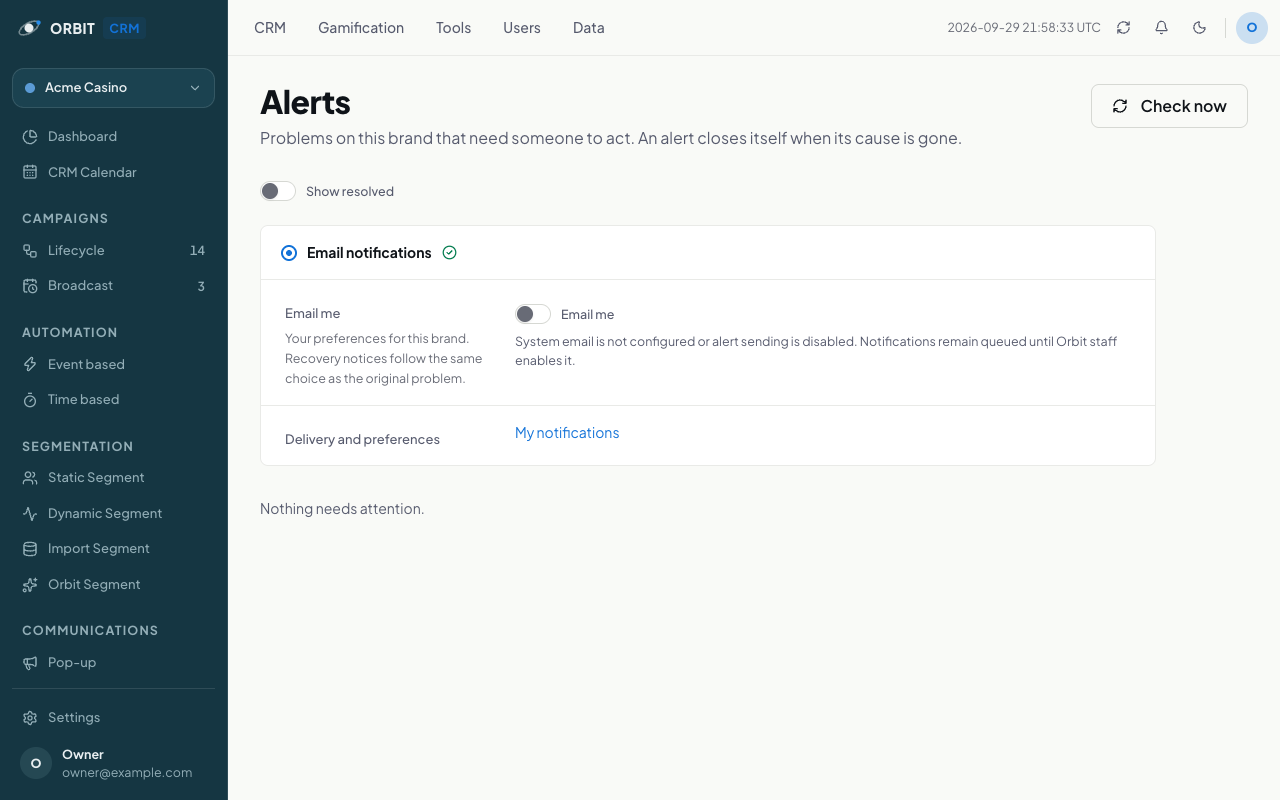
- Press the bell at the top. The title is Alerts. The subtitle reads “Problems on this brand that need someone to act. An alert closes itself when its cause is gone.”
- With a brand selected, the table columns are Problem, Area, Seen, Status and Actions. Area includes Shield, Ingest, Bonuses, Campaigns, Messaging, Front Script, Retention, Webhook paused and Data source. Problem includes Shield: New case, Shield: Case expiring in 48 hours, Shield: Review request deadline, Shield: Rule ceiling reached, Shield: Reversal incident, Shield: Collection off, AI assistant refusals, SMS provider balance, Player API actions suspended, Player API read fan-out, Ingest refusals, Bonus connector, Campaign stopped, Messaging credentials, Front Script inactivity, Retention: daily totals behind, Webhook endpoint paused, Data source failing and Mini game and safe stock. A problem seen more than once says how many times, and when it was first seen. Your Orbit admin can find the integration guide under Tools.
- Status is Critical or Warning while the row is open. Press Acknowledge when you have seen it and it is not finished. The status becomes Acknowledged, and Acknowledge leaves the row. Resolve stays.
- Press Resolve when the problem is dealt with. The row leaves the open list.
- Turn on Show resolved to bring those rows back. A row Orbit closed on its own says Closed itself. A row someone resolved says Resolved. With the switch off and nothing open, the page says Nothing needs attention. With the switch on and no rows at all, it says Nothing here.
Check now asks Orbit to look again. While it runs, the button reads Checking…. If the check does not run, the page says “The check did not run:” and the reason. If a status change does not save, it says “The alert was not changed:” and the reason.
Under the switch, Email notifications has Delivery and preferences, which opens My notifications. That page is where Off, Immediate and Daily digest are chosen. They are not chosen on Alerts.
Warning
A read-only role sees “Your role is read-only. Someone with the Operator, Manager or Owner role checks, acknowledges and resolves alerts.” Check now, Acknowledge and Resolve are not offered on that sign-in.