Appearance
The Progression map lays missions along the level ladder. Dragging a card stores the level that mission is tied to.
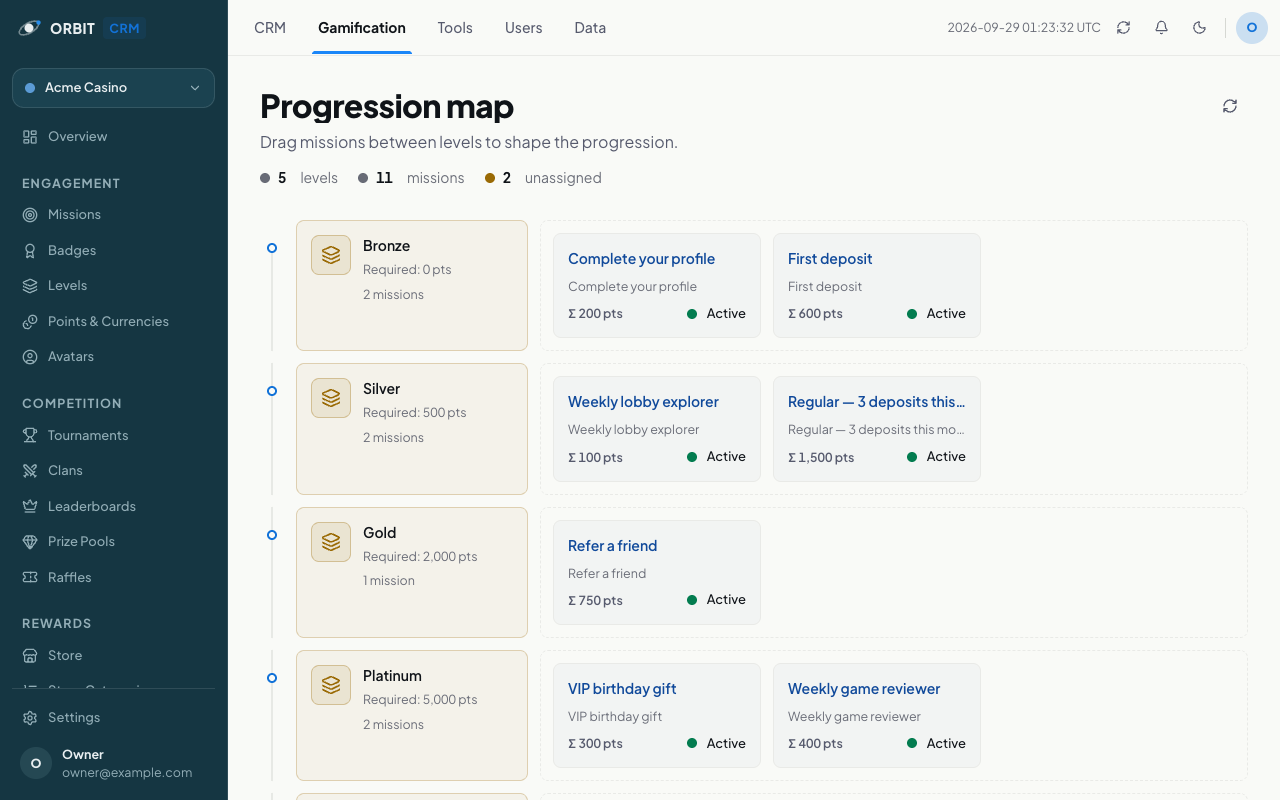
- Open Gamification, then Setup, then Progression map. The title is Progression map. The subtitle reads “Drag missions between levels to shape the progression.”
- The header counts levels, missions and unassigned. Unassigned turns yellow while any mission is in that lane, and green when the count is zero.
- Each level is a lane. The lane shows the level name, “Required:” and the level’s points, then “pts”, and how many missions sit on it. A level that is not active is marked “Level paused — no one new reaches it”. An empty lane says Drop missions here.
- Drag a mission card onto another level. Releasing it saves that level as the mission’s unlock level. Dropping a card on the lane it already occupies changes nothing.
- The bottom lane is Unassigned, with the line “Not tied to any level”. Drag a mission there to clear its level. When every mission already has a level, that lane says “Every mission is assigned to a level”.
- Click a mission card to open that mission under Engagement, Missions.
- Refresh reloads the lanes.
If the brand has no levels, the page says Create levels first and offers Go to Levels. The map can take a drop only after at least one level exists.
A failed move shows the reason in red at the top of the page. The card stays where this screen last loaded it. Refresh reads the saved lanes again.
Tip
The unassigned count in the header is the same number of cards in the Unassigned lane. Moving the last one turns that count green.