Appearance
Start a Lifecycle campaign on Main. The first Save is what stores it.
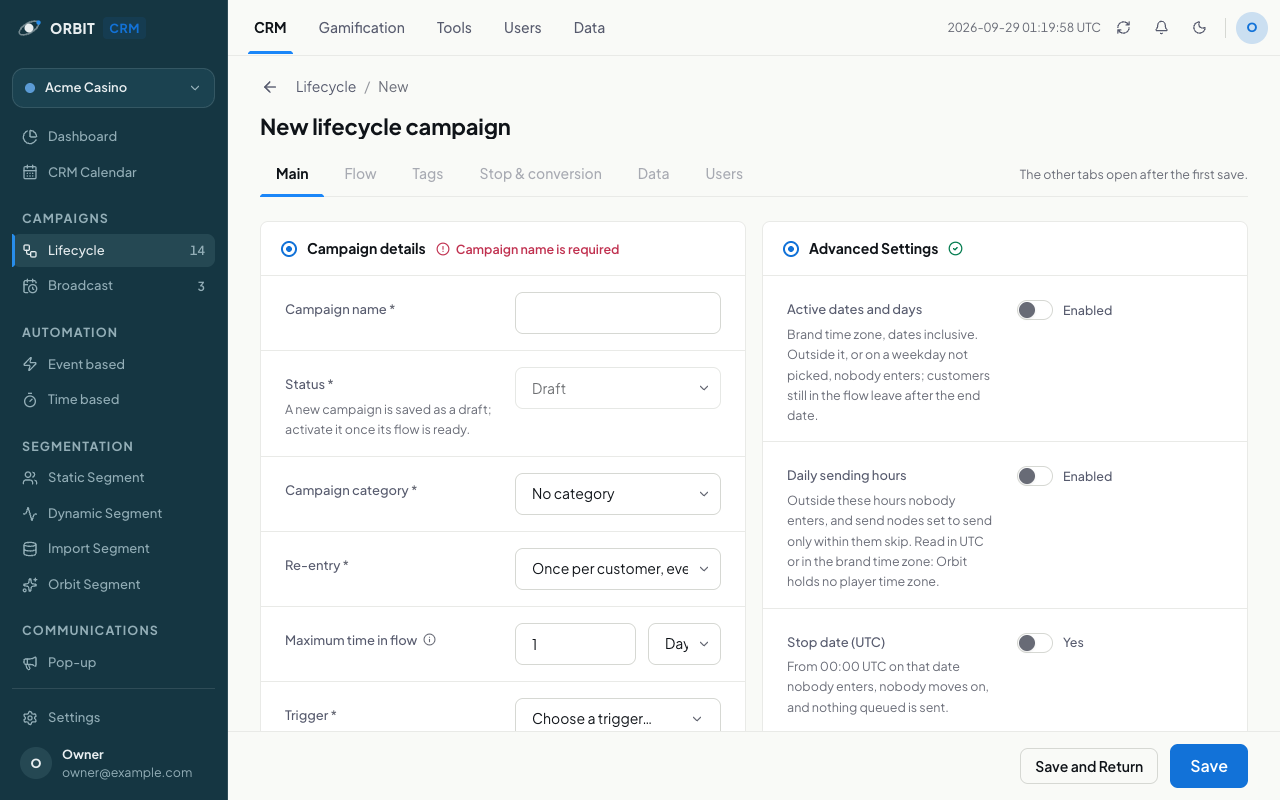
Before you start, the brand needs at least one event it can start on. If Trigger says “No events in this brand’s catalogue”, follow Install an event pack. The triggers appear after the pack is in place.
- Open CRM, then Campaigns, then Lifecycle. The page title is Lifecycle Campaigns. The tabs are All campaigns, Active, Paused, and Drafts. All campaigns includes Active, Draft, Paused, and Disabled. Archived is only under the Status filter. List and Connected sit beside the filters.
- Press Create. Orbit opens New lifecycle campaign, on the Main tab. The crumb is Lifecycle Campaigns, then New. The other tabs stay off, and the note says “The other tabs open after the first save.” Nothing is stored yet. Leave this screen without Save and no draft is left behind.
- Campaign name is required. Until it has text, Save says “Campaign name is required”. Status is Draft and cannot be changed on this new screen. The hint says a new campaign is saved as a draft, and that you activate it once its flow is ready. Campaign category can stay on No category, or be Onboarding, Engagement, Retention, Reactivation, VIP, Newsletter, or Service.
- Trigger is required. Choose a trigger… lists the brand’s events. A long list opens a search box, Search…, and keeps its groups. No match means nothing fits. Segment can be All customers (no segment). Additional conditions are combined with AND. A money amount in those conditions is in the brand currency. Estimate audience counts who would match.
- On Main, open Event conditions under Trigger to filter the event that starts the campaign. Choose a value the trigger carries, such as Real money balance after, and set the comparison you want. The event must pass these rules as well as Segment and Additional conditions. Put customer profile rules under Additional conditions.
- Re-entry is Again after the current run ends, Once per customer, ever, Each time the trigger matches, or Restart the current run. It starts on Once per customer, ever. Maximum time in flow starts at 1 and Days.
- Press Save. The other tabs, including Flow, then open. Save and Return stores it and goes back to the list. Later edits show Unsaved changes until you save, then Saved.
With Event conditions empty, any occurrence of the selected event can qualify. Changing the trigger clears its event conditions. Pick the original trigger again before saving to recover its conditions. These rules apply when an event starts the campaign. Estimate audience and entry through Start connected campaign have no trigger event to check.
A first-time trigger starts the campaign only when the event happened after the campaign was first activated, with about five minutes of clock tolerance, and within the trigger’s maximum age. That age starts at 24 hours, measured from when the event arrived, and you can change it on the trigger. An older event is still stored and still updates the profile. The campaign activity records the skip. A trigger that is not first-time does not use this age.
More sits in the header once the campaign exists. Activate campaign sets Status to Active straight away. Pause campaign sets Paused: people already inside keep going, and the trigger does not start new ones. Disable campaign and Archive campaign ask first, because they end everyone still inside.
Warning
A Lifecycle has no priority control. On a Broadcast, Priority group (observational) is stored and not applied. Priority Groups shows the groups. Today every broadcast that reaches a customer sends.