Appearance
Draw the steps a customer walks after the Lifecycle starts, and save that drawing.
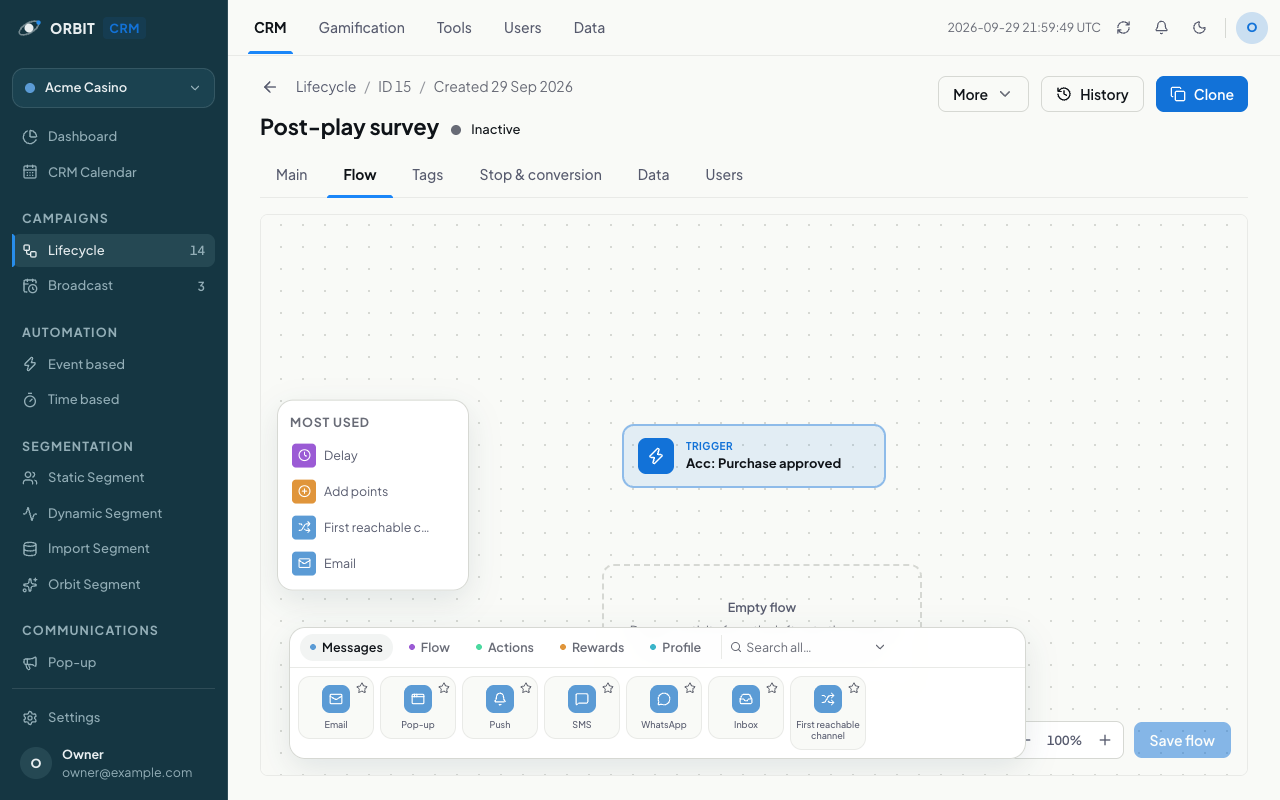
- Open the Lifecycle. The first tab is Main. Open Flow, the next tab. It sits between Main and Groups.
- The canvas opens on the trigger. If no trigger is set, the start card reads No trigger set. Set the trigger on Main first, then come back.
- The bar along the bottom groups the steps: Messages, then Flow, then Actions, Rewards, and Profile. Click that group, or use Search all…. Flow includes Wait for accumulation. A Broadcast does not. Rewards includes Give game plays.
- Messages on a new flow include Email, Pop-up, Push, SMS, WhatsApp, Inbox, and First reachable channel. Drag a step onto the canvas, or click it. A click drops it in the middle of what you can see. The button tooltip is “Drag onto the canvas, or click to add”, then the step’s name.
- A step the engine will not carry out is left off the bar, unless this canvas already holds one. Then it is dimmed. The tooltip is the step’s name, “(unavailable)”, and the reason. You cannot drop a new one.
- Hover a step until the round port appears. Its tooltip is “Drag to connect”. Drag that port onto the next step. If the step has more than one way out, such as Then or Time passed, the canvas asks which one you mean. Click the × on a line to remove it. On a message step, Then is the exit for any outcome that does not have its own line. Connect Failed when a failure should take a different path. People already inside an older flow keep the routing that flow had when they entered.
- The left rail is Favourites and Most used. Star a step to park it there. Until you have built something, Most used says “Nothing built yet. Add activities from the bar below and the ones you reach for will collect here.”
- When the drawing is right, press Save flow at the right end of the bar, next to the zoom percentage. It stores the steps and the lines, and it stays off until something has changed. While it works it reads Saving…, then Saved.
A block’s tile colour follows its group in the bar. The shape tells you what the block does. A rounded square acts, a circle waits, and a diamond makes a decision. Tags and milestones use a dashed grey square. Conversion exit and End flow both use an octagon, each with its own colour.
Zoom out and Zoom in sit beside that control. Main’s Save does not store this drawing. Save it here before you leave the tab.
Tip
A broadcast uses the same canvas, but its bar keeps only Email, Pop-up, Push, SMS, WhatsApp, and Inbox. It sends the first of those messages and nothing after it. Use a Lifecycle when the customer should walk more than one step.