Appearance
A WhatsApp gateway is the account Orbit sends WhatsApp through. Mode decides whether it is off, a test, or live, and Enable fallback decides whether a message that the provider did not accept can try the next gateway.
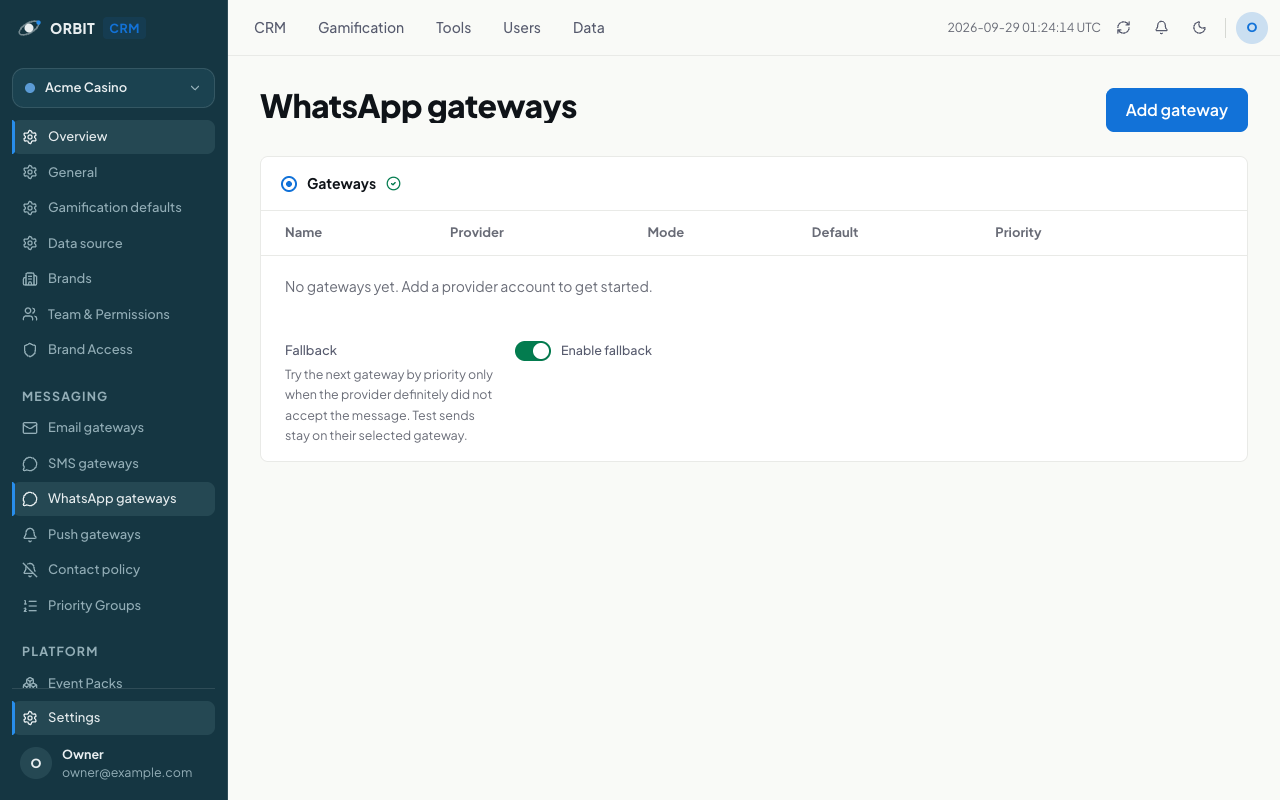
Before you start: an Owner or a Manager can add and save. Everyone else can open WhatsApp gateways and read the list. The title is WhatsApp gateways.
- Open Settings, then Messaging, then WhatsApp gateways. An older address for this page sends you here as well.
- Press Add gateway so the card New gateway opens.
- Fill Name. Set Provider from the menu on the form. You can change Provider after Save.
- Set Mode to Off, Test or Live. Live sends real messages. Test sends only to the test recipients.
- Use as channel default marks the gateway the channel uses when a send does not pick one. The table prints Default on that row.
- Test recipients are phone numbers with country code, digits only, one per line. That is the same shape as on SMS gateways.
- Press Save and wait for Saved. Then use Move up and Move down in Priority so fallback has an order. The first gateway you add starts as the default.
- Open the saved gateway. The card has Test recipient, Test message, Template ID and Test send. The hint says “Save changes first. The recipient must be on this gateway’s test list.” Press Send test. The button stays off until the gateway is saved, and while Mode is Off.
Turn on Enable fallback if a message the provider did not accept should try the next row by priority. Test sends stay on the gateway you selected. They do not walk the list.
The empty state is No gateways yet. Add a provider account to get started. Edit on a row opens the same card with the title Edit gateway.
Tip
Channel delivery groups sent messages by Channel and Gateway, so the Name you type here is how this account shows up on that report.