Appearance
Change the password on the account you are signed in with. This is not the reset link. The reset link is for when you cannot sign in.
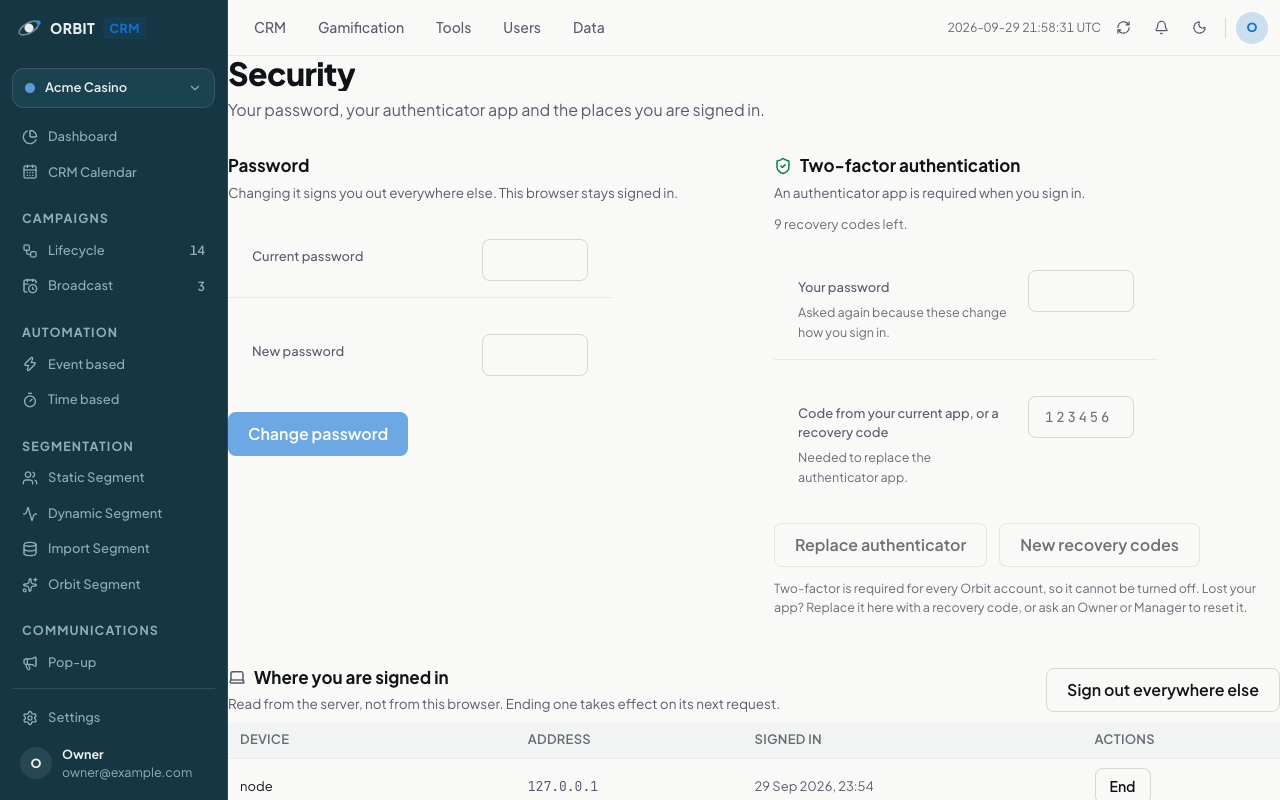
- Press the initials at the top, then Security. The title is Security. The subtitle reads “Your password, your authenticator app and the places you are signed in.”
- The first card is Password. The line under it reads “Changing it signs you out everywhere else. This browser stays signed in.”
- Type the password you use today in Current password.
- Type the replacement in New password.
- Press Change password. While it works the button reads Changing….
When it is accepted, the card says Password changed. If no other browser was signed in, the next line is “No other session was open.” If others were open, it names how many were signed out. This browser stays on Security.
Change password stays off until both fields have something in them. If it is refused, the card shows the reason Orbit gives, for example “That is not your current password.”, “Use at least 8 characters.” or “Too many attempts. Wait a while and try again.” “Could not change the password.” appears only when no reason comes back. Nothing is changed, and the other browsers stay as they were.
Warning
Anyone who still has the old password on another browser loses that sign-in as soon as this change is accepted. They sign in again with the new password. Two-factor authentication on this page is a separate card. Replacing the authenticator app is not part of Change password.
The same page holds Where you are signed in if you only want to close one other browser and keep this password.