Appearance
Create an automation that runs on a clock, for one segment, and start it when the slot is due.
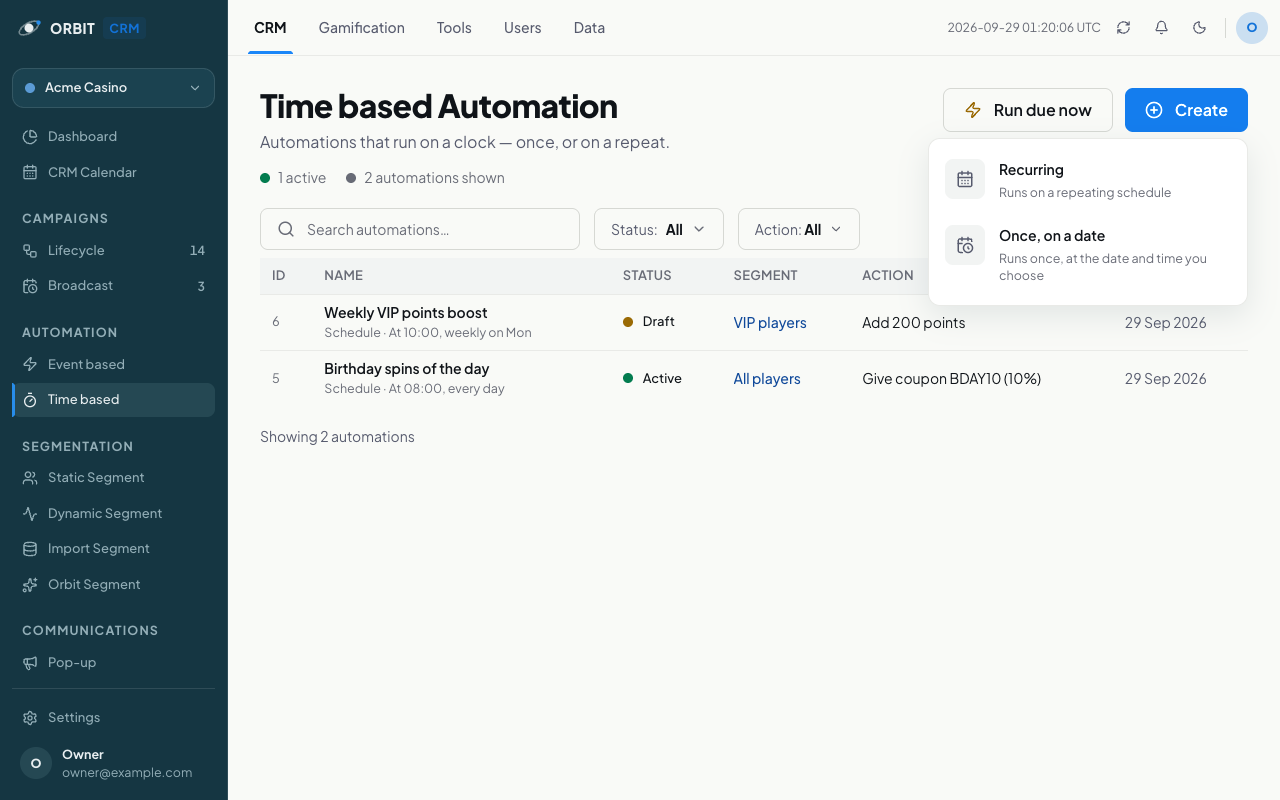
- Open CRM, then Automation, then Time based. The page title is Time based Automation. The line under it says Automations that run on a clock — once, or on a repeat.
- Press Create. Recurring says “Runs on a repeating schedule”. Once, on a date says “Runs once, at the date and time you choose”. Pick one. The editor title is New Recurring Automation or New One-time Automation.
- Type an Automation name. Empty, the card says Automation name is required and Save stays off. Status starts Active. Turn it to Inactive if this save should not run.
- Scheduling is required. Recurring is Daily or Weekly. Daily reads Every, a number, day(s) at, a time, and UTC, starting at every 1 day at 09:00 UTC. Weekly uses the weekday buttons, then at and a time in UTC. Once, on a date reads On, a date, at, a time, and UTC. That date is the browser’s own date field. It does not print the day under the box, and it does not use the brand-zone note a segment condition uses. An empty date makes the card say Pick the date, and Save stays off. See next runs lists the next UTC times, or “No upcoming runs.” A weekly automation with no day selected has none. See Pick dates in conditions and filters.
- Segment is required. It starts on Choose a segment… and shows Required until you pick one. There is no all-customers choice here.
- Set Action with Add action, as on Event based. Add points asks for Points amount and Balances. Calculated points (earn rule) is not in this list: it needs a triggering activity. This list also offers Set account status. That action reaches every member of the segment on every run, and the note under the weekday, hour, and max-action rows says those limits are not applied.
- Press Save. Then, on the list, press Run due now. The tooltip is “Process the time based automations whose next run is due”. If nothing is due, the line says “No time based automations due right now.” If one ran, the line starts with Fired and names the automations. Only an Active one with a slot due is included.
Open a saved automation to see Run history. The columns are Run at, Action, Audience, and Applied. Run now on that page runs it once. An empty table says “No runs yet — click Run now to run this automation.”
Warning
Run due now also walks broadcasts that are due. The line on this page counts only automations. One that has never run looks back 14 days and fires once, not once per missed slot.