Appearance
A Push gateway is how Orbit sends a push. Mode is Off, Test or Live, and Enable fallback tries the next gateway by priority only when the provider did not accept the message.
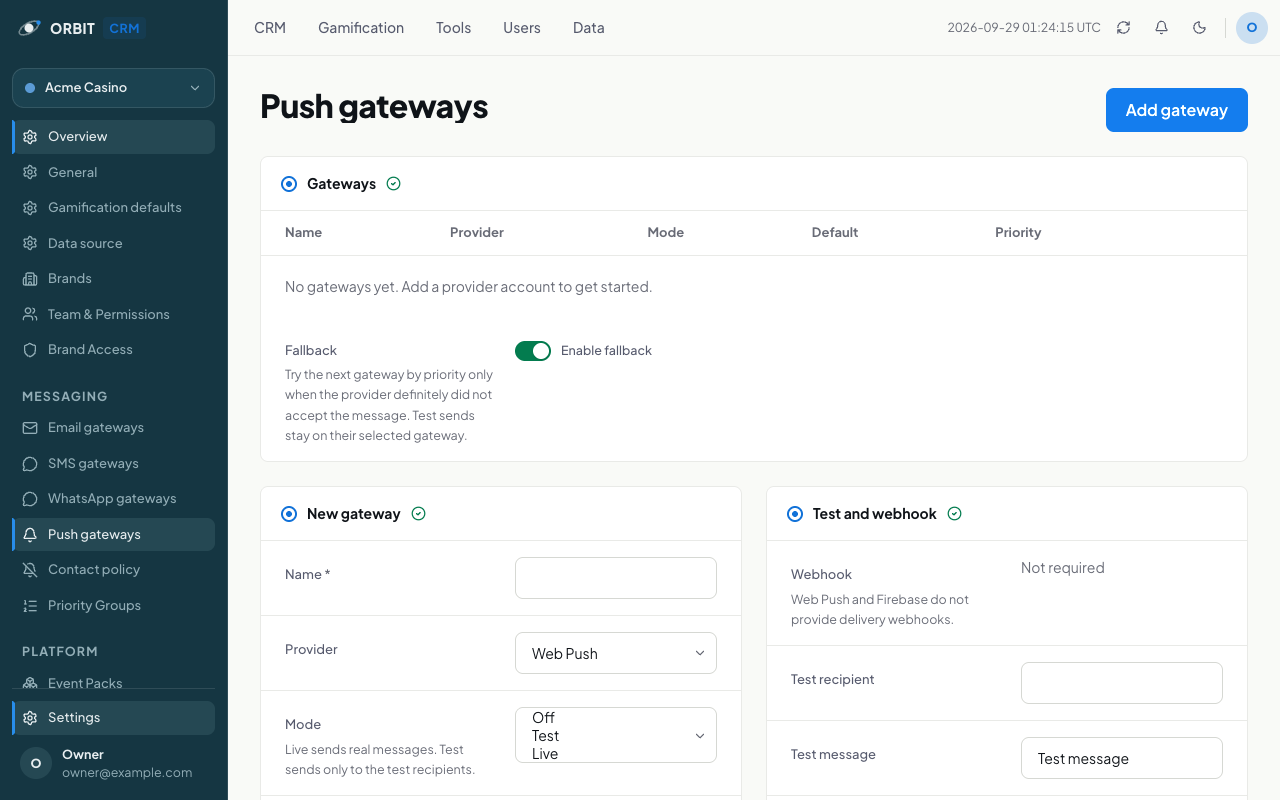
Before you start: Add gateway is shown to an Owner or a Manager. Anyone else can open Push gateways and read the list. The title is Push gateways. The path is under Settings, then Messaging.
- Open Push gateways and press Add gateway. The card is New gateway.
- Fill Name and set Provider from the menu. You can change Provider after you save.
- Set Mode. The choices are Off, Test and Live. The hint under Mode is Live sends real messages. Test sends only to the test recipients.
- Turn on Use as channel default when this gateway should be the push default. Daily cap opens at 1000.
- Test recipients on push are customer IDs or external IDs, one per line. They are not email addresses and not phone numbers.
- Press Save. The list shows Mode in the Mode column, Default when Use as channel default is on, and Priority as a number. Move up and Move down reorder priority.
Enable fallback is under the table. Try the next gateway by priority only when the provider definitely did not accept the message. Test sends stay on their selected gateway, so a test does not hop to the next row.
If the provider has stopped the gateway, Mode shows Stopped in red instead of Off, Test or Live. No gateways yet. Add a provider account to get started. is what you see before the first one.
The card can also show a test send. Its hint says to save changes first, and that the recipient must be on this gateway’s test list.
Warning
Live sends real push messages. Test reaches only the customer IDs and external IDs in Test recipients.