Appearance
Write a WhatsApp communication and save it so a campaign can send it.
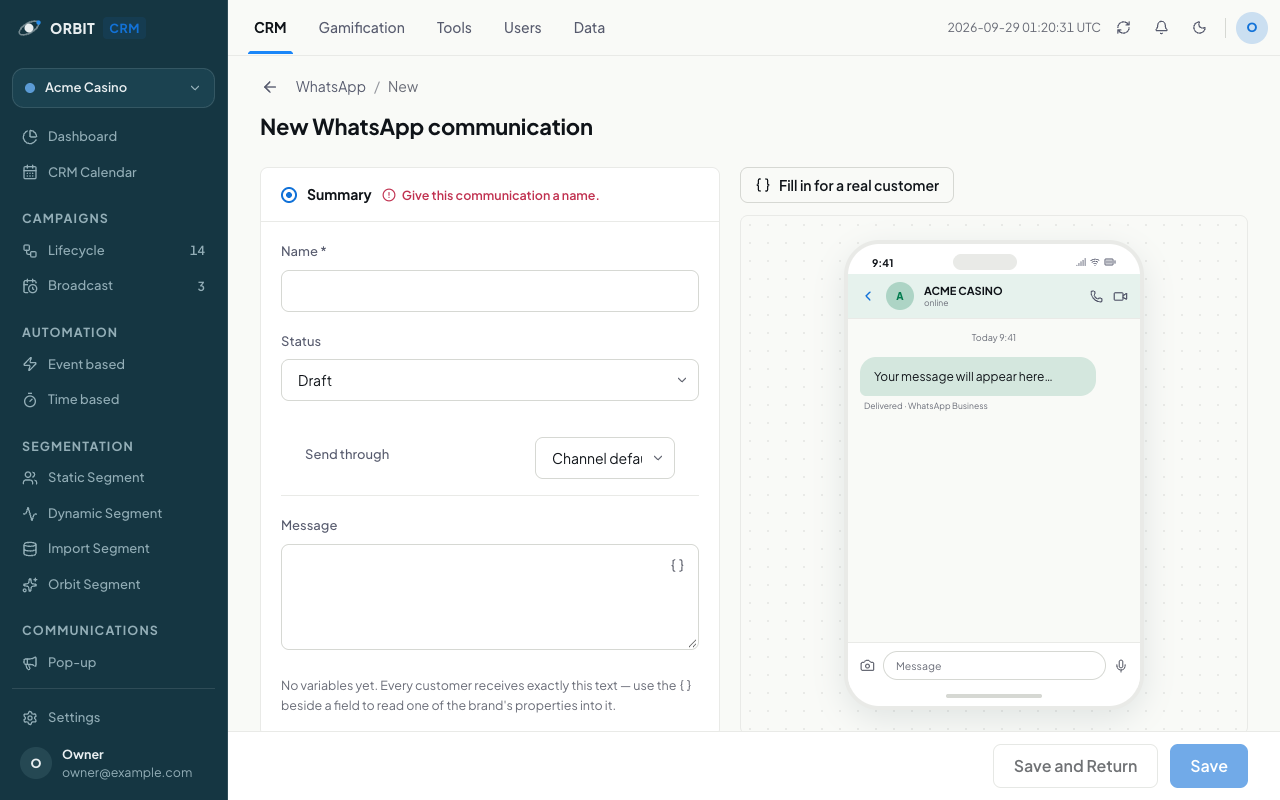
- Open CRM, then Communications, then WhatsApp. Press Create. The title is New WhatsApp communication.
- Fill Name. Status starts as Draft. Save stays off while the card says Give this communication a name. The list opens with Status: All, so the new Draft is on the list. See See every status on a communication list.
- Message is the text. It is not marked required. The preview shows it in a phone frame. Empty text reads “Your message will appear here…”. Under the bubble the preview says “Delivered · WhatsApp Business”.
- Send through can stay on Channel default, or you can pick another WhatsApp gateway already added for this brand.
- Image (header) stores a header image for the preview and the history. The send uses the approved template id. See Add a WhatsApp header image.
- When this brand requires an approved template id, a numeric box sits above the image. Its hint reads “Approved template id for this communication. A flow step can override it.” The box’s own label is the provider’s name followed by “template id”. Type the approved template number, digits only. A value that is not a positive whole number says “Must be a positive whole number.” Leave it empty and the page warns: “Without a template id, a real WhatsApp send of this message fails and says why.” You can still press Save. The warning is about the send, not about storing the row.
- Press Save, or Save and Return.
A flow step can name a different template number from the one stored here. If the field is absent, this brand’s gateway is not asking for one.