Appearance
See whether the active brand is ready, and open the screen that changes a setting.
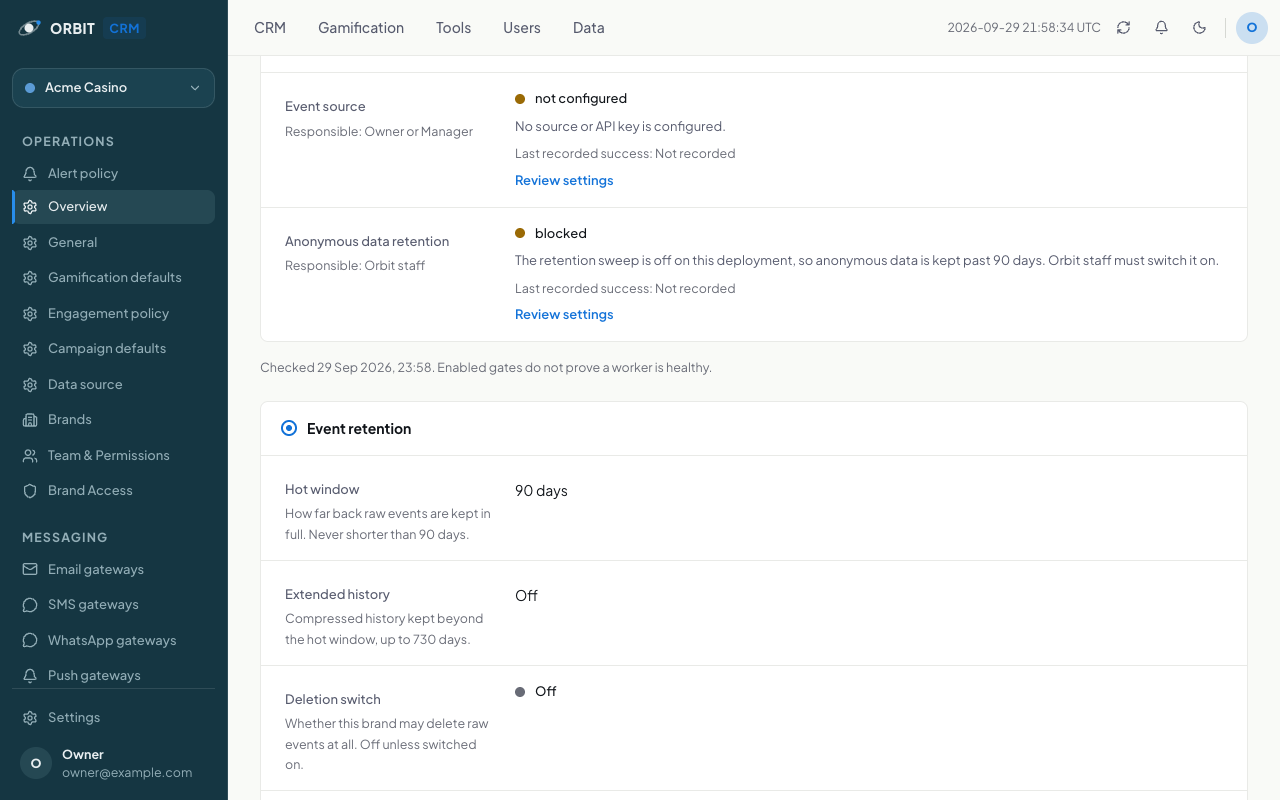
- Open Settings. The first item is Overview. The title is Settings. The subtitle reads “Readiness of the current brand, and every setting with a link to the screen that changes it.”
- Brand readiness is the first panel. Each row is one part of the brand. The dot prints the state: ready, blocked, failed, not configured, not connected, never received, or processing. The reason sits under the name. Responsible is Orbit staff, or Owner or Manager. Last recorded success shows a time, or Not recorded.
- A blocked row is off. Sign-in two-factor and sealed credentials, when blocked, says two-factor enrolment at sign-in is refused until Orbit staff sets a 32-byte key. Review settings opens Security. Scheduler and models, when blocked, says Deployment scheduler is off. Orbit staff must enable processing. Review settings opens General. Activity processing, when blocked, says Deployment activity processing is off. Review settings opens General. Delivery processing, when blocked, says Dedicated sender is off; scheduler or manual passes may still process messages. Review settings opens Email gateways. Bonus delivery and Webhook delivery, when blocked, say Deployment sender is off. Orbit staff must enable it.
- Press Review settings on the row you need. When that screen is a connection an admin sets up, Your Orbit admin can find the integration guide under Tools.
- Press Refresh to load Brand readiness again. The line under the panel says when it was checked, and that enabled gates do not prove a worker is healthy. If the readiness read fails, the page says Could not load data, and Try again. The search under it stays.
Search settings sits under the title. The placeholder is Search settings. No settings match this search means nothing fit. While a search is open, the results replace the panels under it.
Event retention sits under Brand readiness when the search is empty. It is read-only. The rows are Hot window, Extended history, Deletion switch and Raw event deletion. The note says none of these can be changed here yet. Read Event retention walks each row.
Under that, each group is a panel of settings. A row has Open and the name, then Effective, Default and Source. The line above the groups names the brand and its time zone, or says Select a brand to read its policy.