Appearance
Surprise rewards are not started with Play. Orbit selects customers on a schedule and they Claim on the site, under Games, while the claim window is open.
Before you start
An Owner or a Manager publishes and turns games on. Status must be Active. You need a segment for the eligible audience. Only contactable customers are drawn.
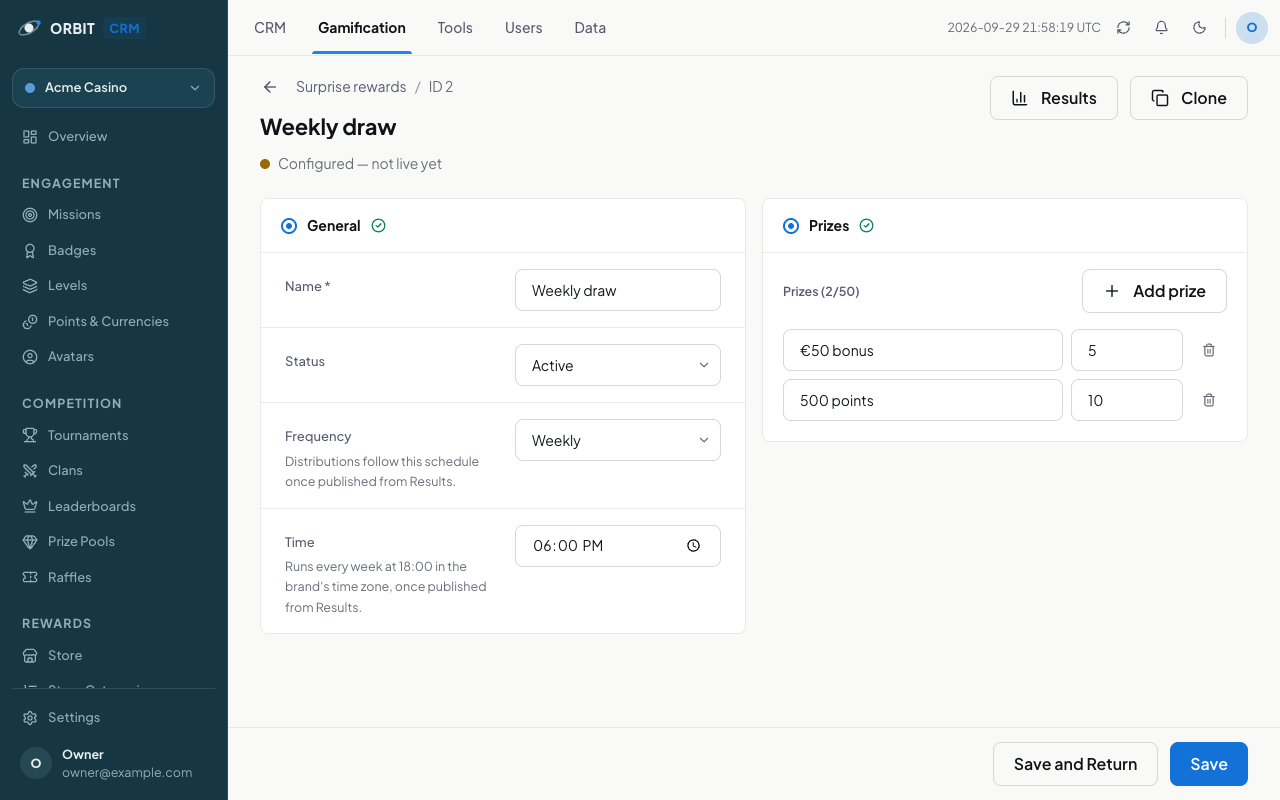
- Open Gamification, then Mini Games, then Surprise rewards. Click Create. The screen is New surprise reward.
- Under Name, type the name. Set Status to Active.
- Set Frequency to Daily or Weekly. Set Time. The hint tells you the schedule: every day, or every week, at that time in the brand’s time zone, once published from Results.
- Under Prizes, click Add prize. Type a Prize label and the quantity available. Add at least one prize. You can list up to 50.
- Click Save, then Results.
- Click Turn games on for this brand if games are off.
- Click Publish a run. Set Starts (UTC) and Ends (UTC). Distributions run at the scheduled time between these dates.
- Set Prize release to Approval or Automatic.
- Under Eligible audience, choose a segment. The audience is frozen at publication. If Frequency is Weekly, set Day of the week (Monday through Sunday). Set Days to claim.
- For each prize, choose No prize, Points or Bonus. The row shows how many go out per distribution. Click Publish.
On the site, a selected customer sees the reward name, the prize, and Claim by when it is Ready to claim. They click Claim. After that the prize status updates on the card.
The editor shows Live while a run is open, games are on, and the end time is still ahead. The Surprise rewards list can still say Configured — not live yet.
Warning
Publish asks you to choose the eligible audience. Without a segment, the run is not published. An empty prize list is refused: add at least one prize before publishing.
Tip
Change the prizes or the audience later by publishing a new revision. The line under Publish says publishing freezes these rules.