Appearance
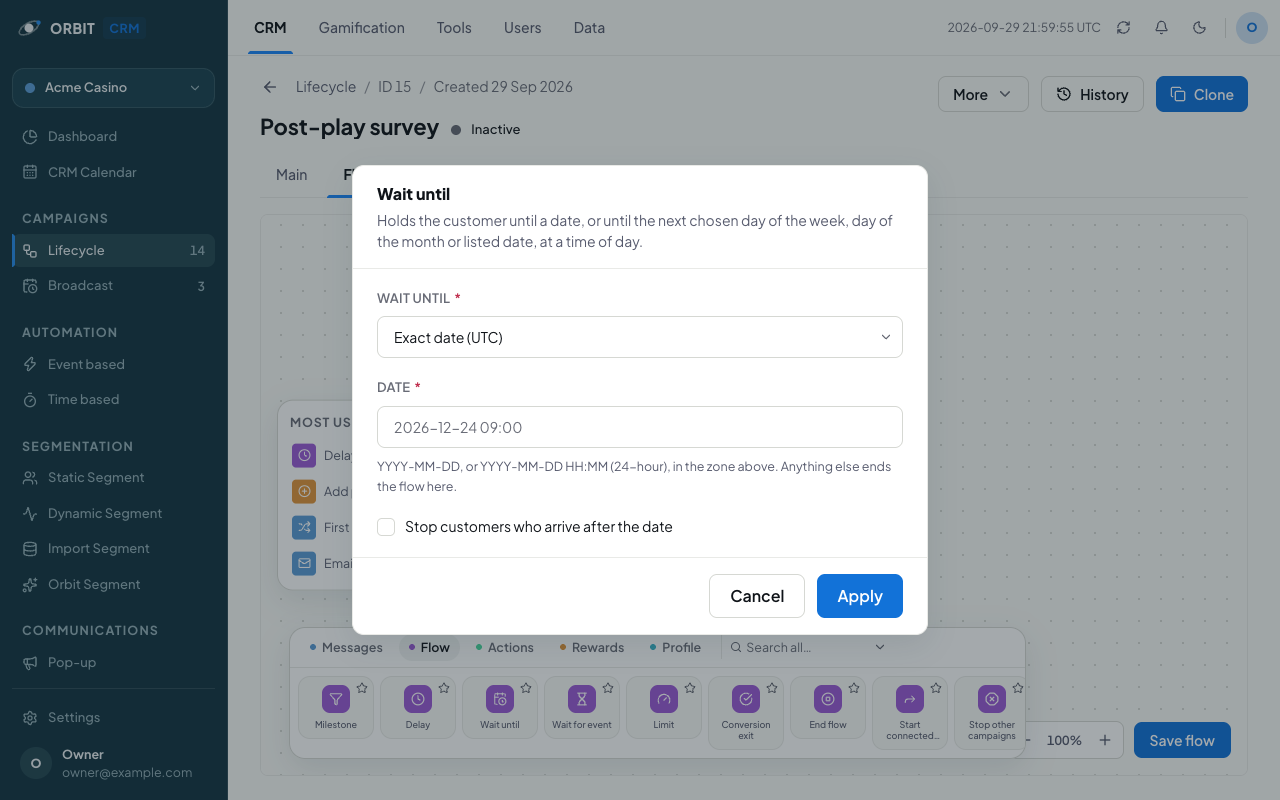
Wait until can hold a customer until the next chosen day of the week, at a time of day, and then let them walk on through Time passed.
Before you start
You need a lifecycle campaign. Open CRM, then Campaigns, then Lifecycle, open the campaign, and open the Flow tab. On a new campaign that tab stays disabled until you save once from Main.
- Under Flow, click Wait until. The activity lands in the middle of the canvas. Click it.
- Open Wait until and choose Day(s) of week (UTC) or Day(s) of week (brand time zone).
- Under Days of the week, select at least one day. The days read Mon, Tue, Wed, Thu, Fri, Sat and Sun.
- Under Time of day, type the time as HH:MM in 24-hour form, for example 09:00. Leave it empty to use midnight.
- Read Next releases. Those are the next times this step will use. A customer who arrives at a release time walks on at once. A customer who arrives later waits for the next one.
- Click Apply. Drag from Time passed to the next activity.
- Click Save flow.
Day(s) of week (UTC) reads the day and the time in UTC. Day(s) of week (brand time zone) uses the brand time zone. Customer time zones are not stored, so this uses the brand time zone fallback.
A customer who reaches the step at 09:00 on a Monday, with Monday at 09:00 chosen, walks on at once. A customer who reaches it at 09:01 waits until the next Monday at 09:00.
Warning
Choose at least one day. A time that is not HH:MM cannot be saved as a live flow: the activity is marked Ends the flow here, and the customer stops at this step.
Tip
Apply stays off until the days and the time can be read. Fix the red line under the field, then apply again.