Appearance
The brand button at the top of the side menu opens Brands. The brand you pick is the one every screen shows, and Orbit keeps that choice on your account.
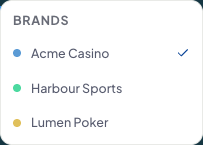
- Sign in. The side menu starts with the ORBIT CRM mark.
- Press the button directly under that mark. It shows a colour dot and the name of the active brand. It is not labelled Brands until it opens.
- The menu heading is Brands. Each row is a brand you can reach, with a colour dot and the brand name. The active row has a check.
- Press the brand you want. The menu closes. The page says Loading… and Switching brand… until the switch is accepted. The side menu then comes back, and the button shows the name you picked. If the switch does not go through, the button returns to the brand you had.
Every screen follows that brand: the figures, the customers, the campaigns, and the settings. They load again after the switch. When the brand belongs to another organization, that organization becomes the active one, and your role is the role you have there.
The choice is stored on the account, not only in this browser. The next time you sign in, on this device or another, you open on the brand you picked.
When your brands belong to more than one organization, Brands prints the organization name beside every brand name. That is how two brands with the same name are told apart. The closed button still shows the brand name only. Two brands that share a name inside one organization do not get the organization printed.
A single brand still opens Brands, with that one row. If your account has no brand, the button is not shown.
Tip
Operator and Analyst members only see brands granted on Brand Access. Owner and Manager already reach every brand.