Appearance
Create adds one step to the level ladder for the active brand. Customers are placed on a level only when the Levels engine is live.
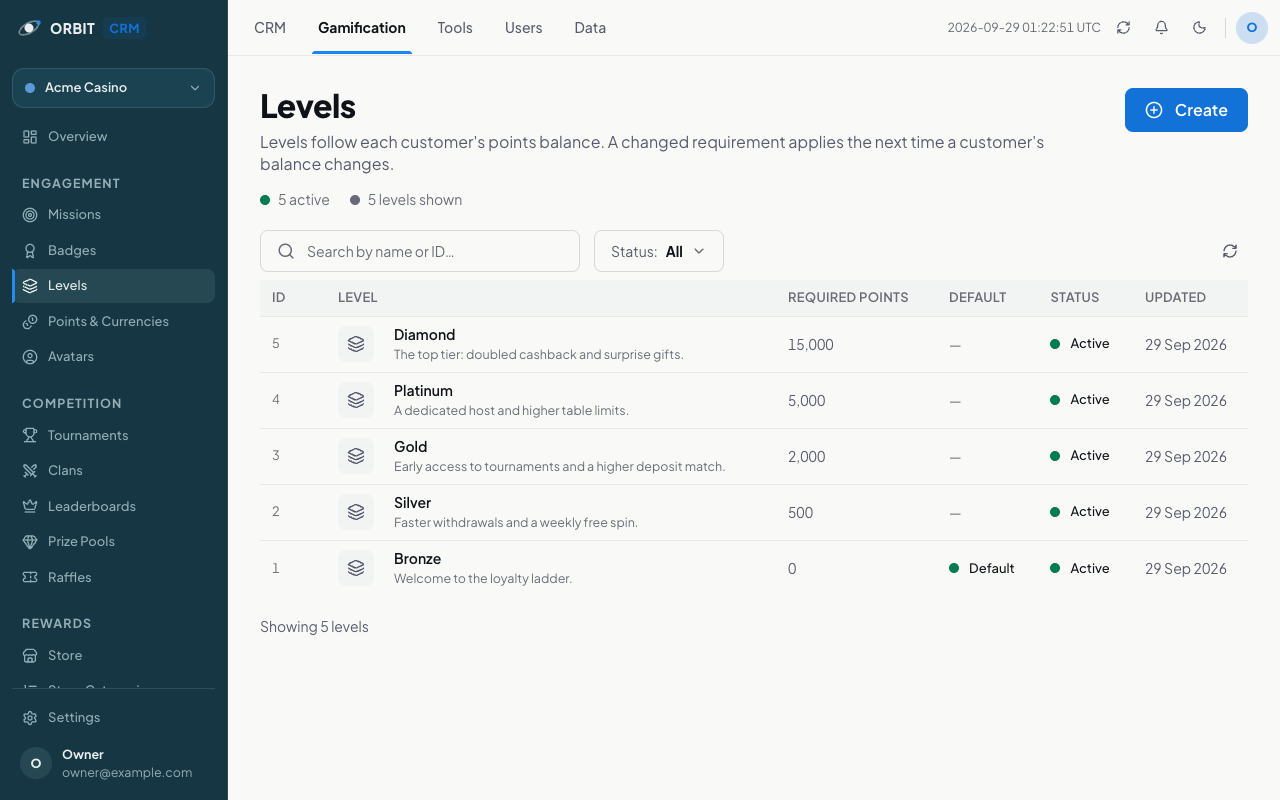
- Open Gamification, then Engagement, then Levels. The subtitle reads “Levels follow the figure each level qualifies on — XP by default. A changed requirement applies the next time that figure moves.” The list column is Threshold.
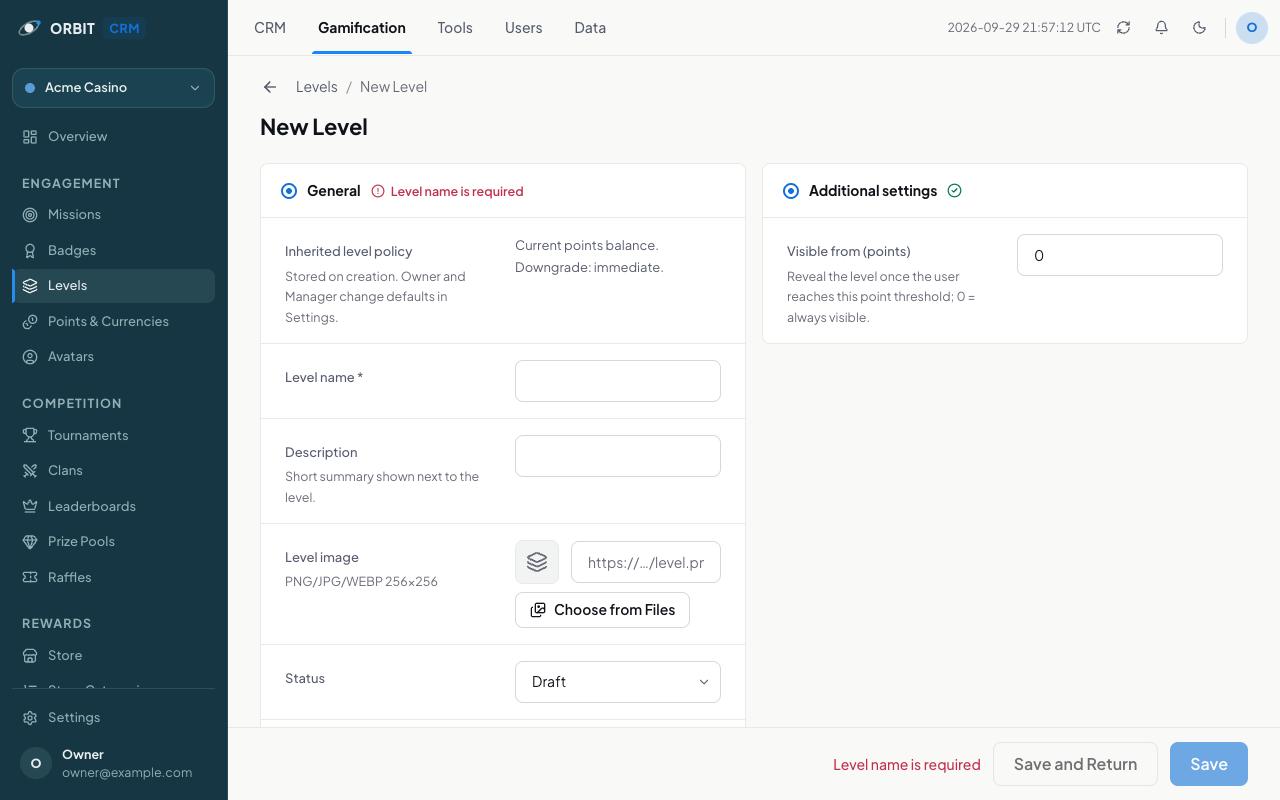
- Click Create. The page is titled New Level. The tabs are General and Additional settings.
- Level name is required. Leave it empty and Save shows “Level name is required”.
- Description is the short summary shown next to the level. Level image takes a PNG, JPG or WEBP address at 256×256. Status is Active, Draft or Inactive.
- With the progress counter still called XP, the amount field reads XP needed. The hint reads “XP the customer must accumulate to reach this level. XP is never spent, so nothing they buy can cost them this level.” There is no menu here to qualify the level on Coins, and the form has no starting-level row. See Levels qualify on XP.
- Save shows Saved. Save and Return goes back to Levels.
Under Settings, then General, Levels engine has Mode Off or Live. The info mark says that, off, levels are configuration only and a tier change your platform sends is recorded as before. Live, a Locked mission's unlock level also decides who may start it, and a customer already taking part is never stopped by a level drop. Turning Live on asks Turn on the levels engine? and the confirm button is Turn on.
Extra data — Not live yet, Platform reference — Not live yet and Visible from (XP) are on Additional settings. The first two say they are saved and not used yet. Visible from (XP) reads “Reveal the level once the customer reaches this XP threshold; 0 = always visible.”
Tip
The Progression map lays missions along these levels. A level has to exist before a mission can be dropped onto it.