Appearance
Write a push notification and check it in the preview before a campaign sends it.
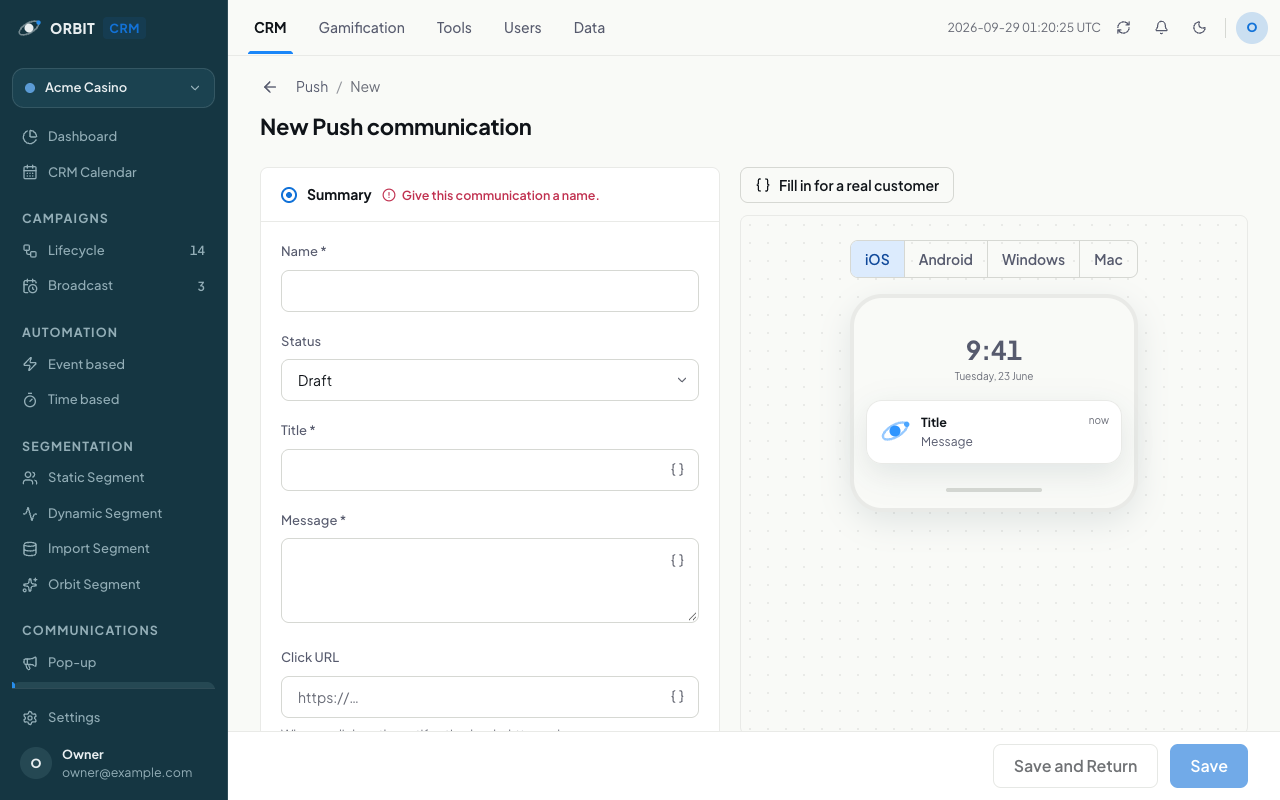
- Open CRM, then Communications, then Push. Press Create. There is no menu. The title is New Push communication.
- Name is the name on the list. Status starts as Draft. Save stays off while the card says Give this communication a name. The list opens with Status: All, so the new Draft is on the list. See See every status on a communication list.
- Title and Message are the lines on the notification. Both are marked required on the form. Save itself only demands Name, so fill Title and Message before you rely on the preview.
- Click URL is where a click on the notification leads. The hint says https only. Icon asks for a PNG, JPG, or WEBP at 128×128 px. Attached image asks for 1024×512 px. Badge image asks for 72×72 with alpha. Each one holds a URL. Choose from Files, beside the field, fills that URL from Files.
- Three buttons follow. Each pair is Button 1 text and Button 1 link, then the same for 2 and 3. The link placeholder is https://… or dp:page. Leave a button empty and the preview omits it.
- Send through sits with the fields. Leave it on Channel default unless this push should use another gateway you have already added.
- The preview starts on iOS. Switch to Android, Windows, or Mac. iOS and Android draw a lock screen at 9:41 with the title, the message, the word now, the icon, the attached image, and the button titles. Windows is captioned Action center. Mac is captioned Notification Center. Click URL and Badge image are stored, and they are not drawn in this preview.
- Press Save, or Save and Return.
Fill in for a real customer, above the preview, replaces variables with one customer’s values when a sample exists. Leave it off to read exactly what you typed.