Appearance
A task is one thing the customer does inside a mission. Points are granted per task as they complete. The mission itself is stored only when you save the mission.
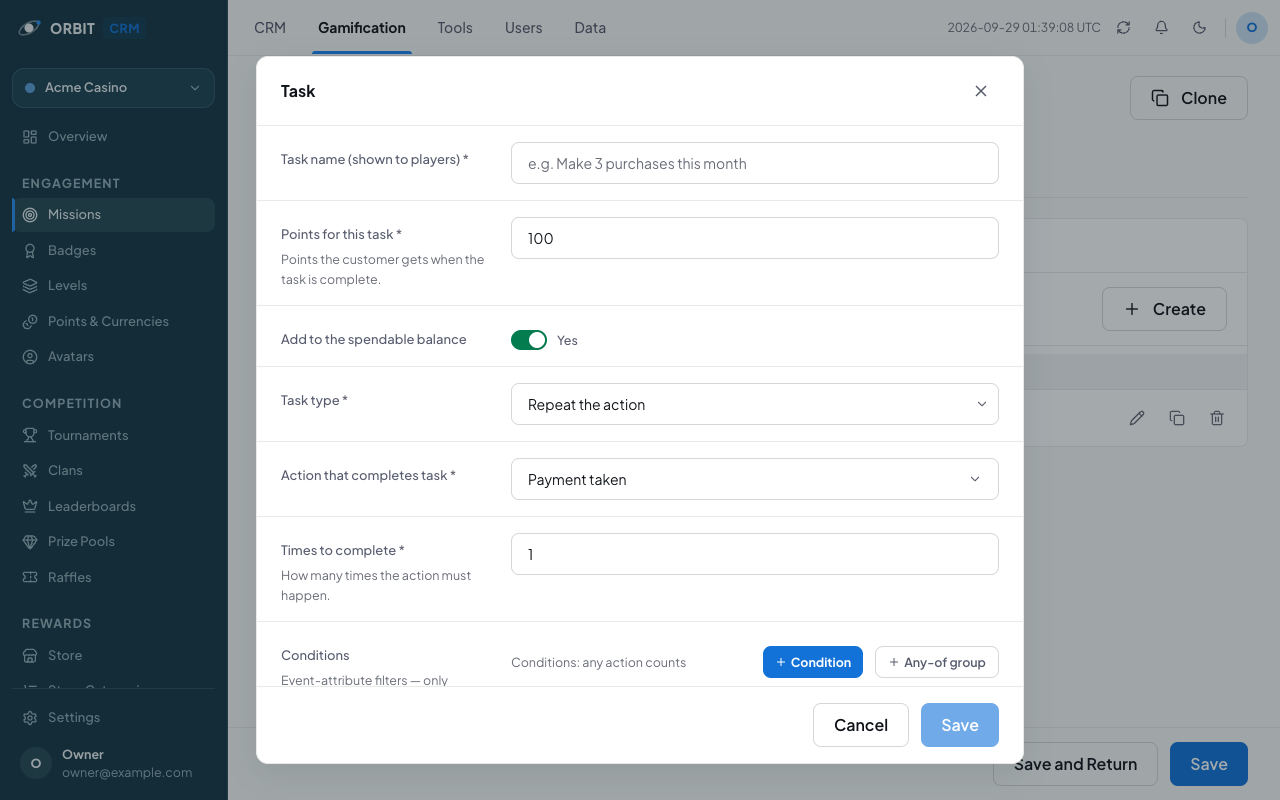
- Open the mission from Missions and go to the Tasks tab. The line there reads “Tasks the user must complete. Points are granted per task as they complete.”
- Click Create. The dialog title is Task.
- Task name (shown to players) is required. This is the name the customer sees.
- Points for this task is required. The hint reads “Points the customer gets when the task is complete.” Balances is Coins, XP and Leaderboard points. The hint reads “The task's points go into every balance chosen here — the same amount into each, from one award.” A new task opens with Coins ticked. Save in the dialog is blocked when every box is clear.
- Set Task type:
- Repeat the action asks for Times to complete.
- Do the action once completes on a single match. The times field is hidden.
- Reach a total amount asks for Amount to reach, the total accumulated value that completes the task.
- Action that completes task is required. The list shows this brand’s event names. A name the catalogue does not have is shown without a “Core: ” prefix, and marked unavailable. Under it, with no heading What counts, you can narrow the task with Event, Amount property, Unit, Counts, Games, Providers, Game categories and Minimum stake per event. A missing catalogue name is marked (unavailable).
- Counting — Not live yet is not on a new task. On a saved task it lists Every time, Once a day and Once a week, and says every matching action still counts.
- Conditions starts at “Conditions: any action counts”. Add a condition when only some of those actions should count.
- Click Save in the dialog. The row appears on Tasks. Edit, duplicate and delete sit on the row.
- Click Save or Save and Return on the mission. Until you do, the task exists only on this screen.
Period to complete — Not live yet appears only when a saved task already has a period. The units are Hours, Days and Weeks, and the task still has no time limit.
Tip
The Tasks column shows the first task name. No tasks yet means the mission was saved without one. Active needs at least one task.