Appearance
Choose which alerts Orbit emails you for the selected brand. Open My notifications from the menu on your signed-in name.
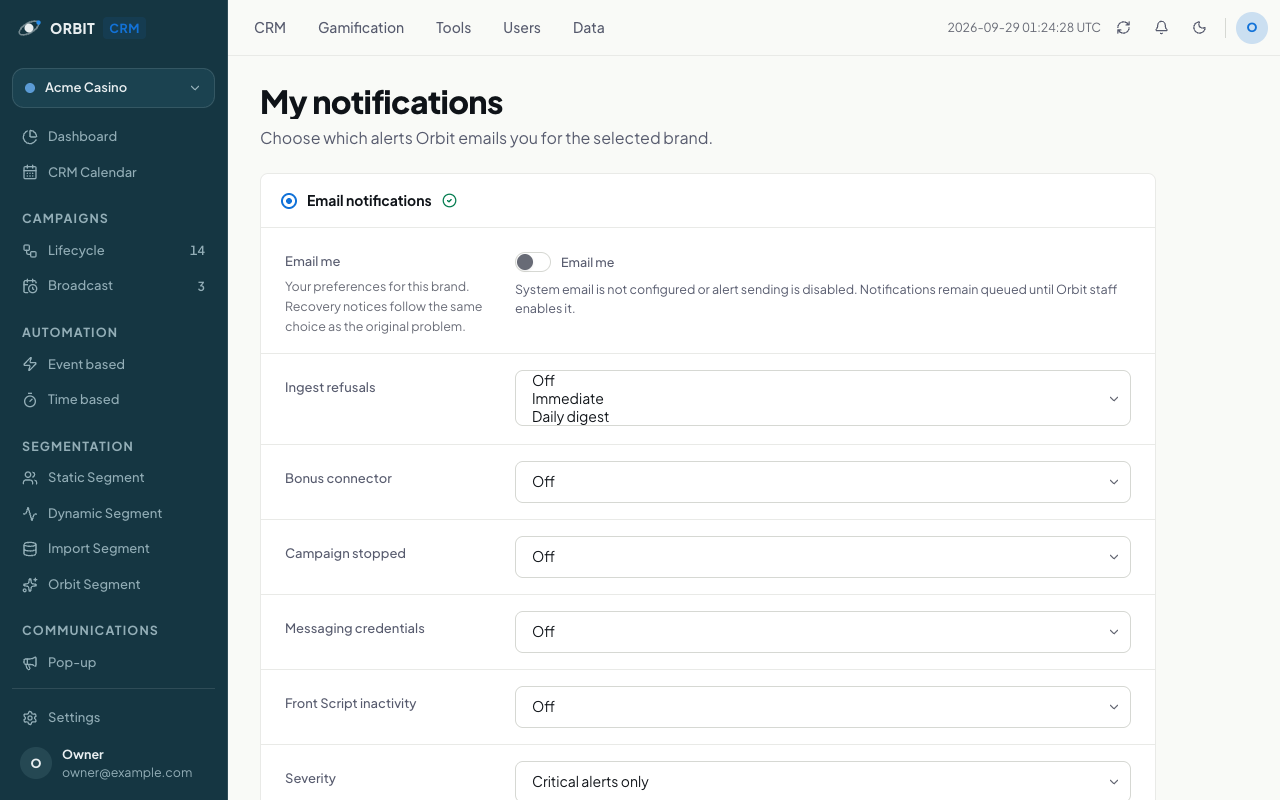
- Press the initials at the top, then My notifications. The title is My notifications. The subtitle reads “Choose which alerts Orbit emails you for the selected brand.” With no brand, the page says “Select a brand to manage your notifications.”
- The bell opens Alerts. That page links to My notifications under Delivery and preferences. Each kind is chosen only on this page.
- The panel is Email notifications. Email me is the switch. The hint reads “Your preferences for this brand. Recovery notices follow the same choice as the original problem.” If mail is not ready, the page says “System email is not configured or alert sending is disabled. Notifications remain queued until Orbit staff enables it.”
- Each kind has its own menu: Off, Immediate or Daily digest. The kinds are Ingest refusals, Bonus connector, Campaign stopped, Messaging credentials and Front Script inactivity. They start on Off. Turning Email me on while every kind is Off sets every kind to Immediate.
- Severity is Warnings and critical alerts, or Critical alerts only. It starts on Critical alerts only.
- Timezone starts as UTC. The hint reads “An IANA timezone, for example UTC or America/Sao_Paulo. Applies to the daily digest.” Daily digest time starts at 09:00. Its hint reads “At most one digest per local day, on the first check after this time outside quiet hours.”
- Quiet hours start and Quiet hours end begin empty. The start hint reads “Digests wait. Immediate alerts are sent at any hour. Leave both times empty to disable quiet hours.”
- Press Save. The page says Saved. Saving with one quiet-hour time, or with the same time twice, is refused with “Choose two different quiet-hour times, or leave both empty”. An unrecognised zone is refused with “Unknown timezone”.
Recent email delivery starts at “No email deliveries yet.” “Accepted means the system email provider accepted the message; it does not confirm arrival in your inbox.” Pending waits for the schedule or system email configuration. Failed means the message was not accepted. Unknown means acceptance could not be confirmed and is not retried. Suppressed means your preference or brand access changed.