Appearance
Create the pop-up a campaign can send, either on top of a template or as HTML.
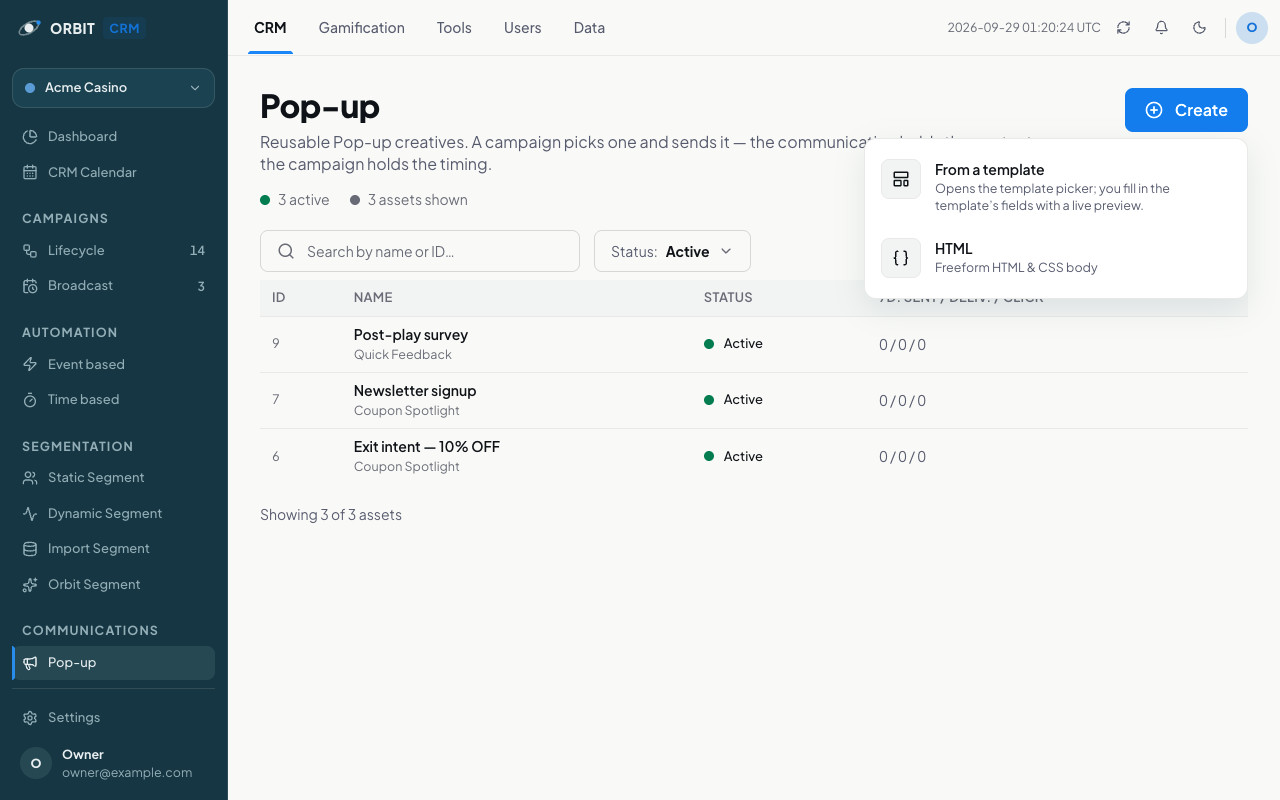
The list says the communication holds the content and the campaign holds the timing. This page is only the content.
- Open CRM, then Communications, then Pop-up. The title is Pop-up. The list opens with Status: All, so a Draft you just saved is on the list. The list remembers the status and the search you used last on this channel. See See every status on a communication list.
- Press Create. From a template says “Opens the template picker; you fill in the template’s fields with a live preview.” HTML says “Freeform HTML & CSS body”.
- From a template opens as New Pop-up communication, with the badge From a template. The card Summary asks for Name. That is the name on the list. Template shows No template selected until you press Select. The picker is Templates. Search templates by name narrows a long list, and the heading My templates stays. Choose one, and press Select Template. Status is Draft, Active, or Inactive. A new one starts as Draft. The fields under that come from the template you picked. The preview stays on “Pick a template to see the live preview” until a template is selected, then it draws the template with your values.
- HTML mode uses the same Name and Status, then Body (HTML & CSS). The preview shows that body. Desktop and Mobile switch the width.
- Press Save, or Save and Return. Save stays off until Name is filled, and the card says Give this communication a name. In From a template, if templates exist and none is selected, the card says Pick a template.
A campaign’s Pop-up step can pick this communication whether Status is Draft, Active, or Inactive.
Tip
If the picker says “No templates for this channel yet.”, create a Pop-up template first, then come back to From a template.