Appearance
Create an automation that runs one action when a customer does a chosen thing.
- Open CRM, then Automation, then Event based. The title is Event based Automation. The subtitle says Automations that fire the moment a customer does something. The list Status filter is Active, Inactive, or Draft. The editor only switches Active and Inactive.
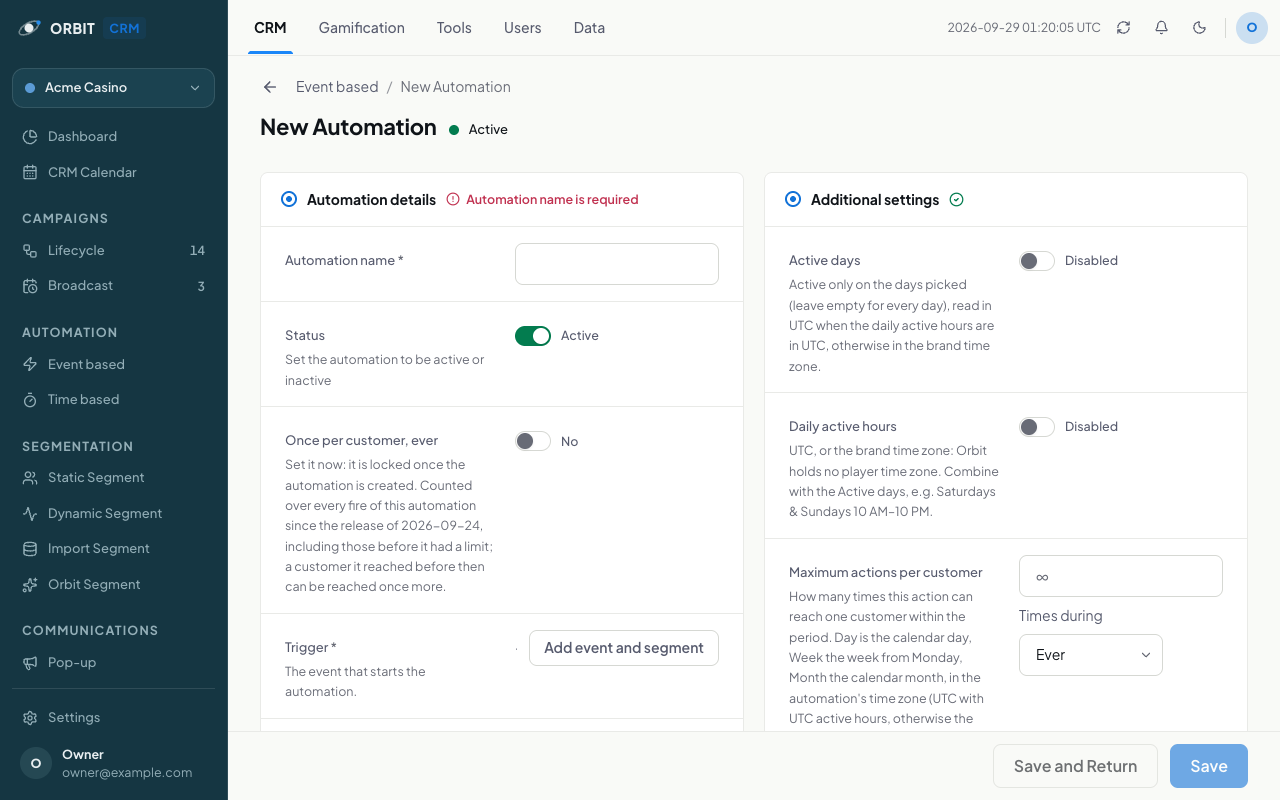
- Press Create. The title is New Automation, and the header dot starts on Active.
- Type an Automation name. The field label is Automation name. Status is Active or Inactive. The hint is “Set the automation to be active or inactive”. Turn it to Inactive before you save if it should not match yet.
- Press Add event and segment. The dialog is Trigger and audience. Trigger starts on Add Trigger… and lists the brand’s events. A long list opens a search box, Search…, and keeps its groups. No match means nothing fits. Segment starts on All customers (no segment). Conditions are combined with AND. Estimate, next to Audience size, counts who would match. Press Apply.
- Action says “No action configured yet.” Press Add action. Action type starts on Choose an action…. The list shows only actions that run. Send email asks for Email communication, Send push for Push communication, and Send inbox message for Inbox communication. Add points asks for Points amount and Balances. The boxes are Coins, XP and Leaderboard points. A new award opens with Coins ticked. Calculated points (earn rule) is the calculated award. Press Apply. See Give points and choose the balances and Create an earn rule.
- Once per customer, ever is Yes or No. Set it before the first Save. After you save, the switch is locked.
- Under Additional settings, Active days limits the weekdays. Leave the days empty for all of them. Daily active hours is System time (UTC) or Brand time zone (no player time zone yet), plus a start and an end. Maximum actions per customer is a count, or empty for no max, then Times during Ever, Per day, Per week, or Per month.
- Press Save, or Save and Return. Save stays off while the card says Automation name is required, Add an action, or Add the trigger event.
Running total and Earlier event required are absent on a new automation. They show only if a saved automation already had them on, and each hint says they are saved and not enforced. The automation still runs once per triggering event.
While Status is Active, a scheduler pass can match the trigger and run the action. That pass runs by itself only when Settings, General says Background scheduler running. Run due now on Time based starts one pass for this brand. This editor has no Run now.