Appearance
Start from a common case, check the condition it fills, and save it as your own segment.
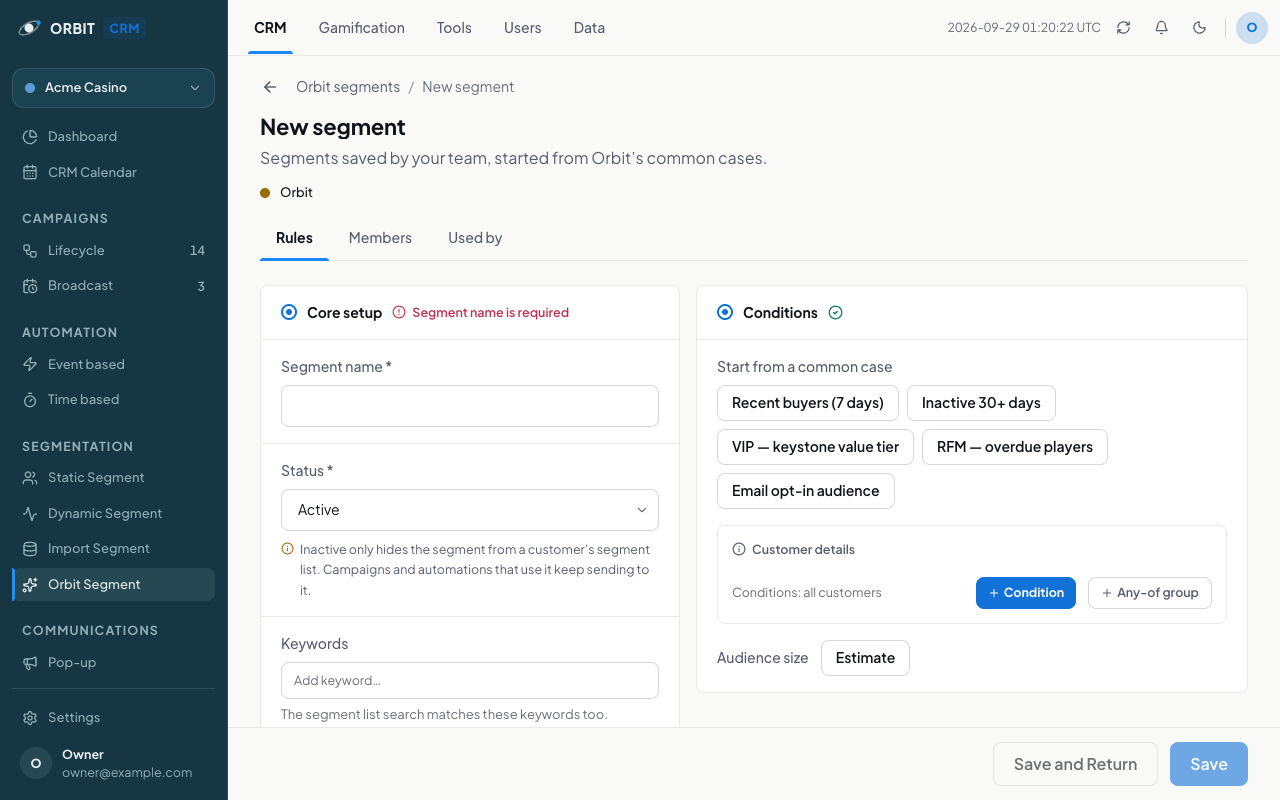
- Open CRM, then Segmentation, then Orbit Segment. The page title is Orbit segments. The line under it says these are segments saved by your team, started from Orbit’s common cases.
- Press Create. The title is New segment. On Rules, the card Conditions opens with Start from a common case.
- Press one of the five cases. Each one fills the condition, and it fills Segment name only when that box is still empty.
- Recent buyers (7 days) sets Core: days since last purchase, <=, 7. Inactive 30+ days sets the same attribute, >, 30. VIP — keystone value tier sets Core: value score equal to keystone. RFM — overdue players sets Core: RFM segment equal to overdue. Email opt-in audience sets Core: email opt-in equal to true.
- You can edit the rows after that, press + Condition, or press Any-of group. A money amount on a row is in the brand currency. A date typed without a time is the whole UTC day. Estimate, next to Audience size, counts who matches those rows right now. The line reads how many customers can be reached.
- Set Status to Active, or Inactive if campaigns should still be able to use it but the customer’s own segment list should hide it. Press Save, or Save and Return.
Saving stores it as your segment. It stays on Orbit segments, under the name you kept. It is not a live link back to the case. Change the condition later and only your copy changes. The case buttons are still there if you want to refill the rows.
Members does not list the customers until you save. Used by, after the save, shows which campaigns and automations point at it. A new one says it is not used by any campaign or automation yet.