Appearance
You open Orbit with the email and password for your account. A successful sign-in lands you in the app.
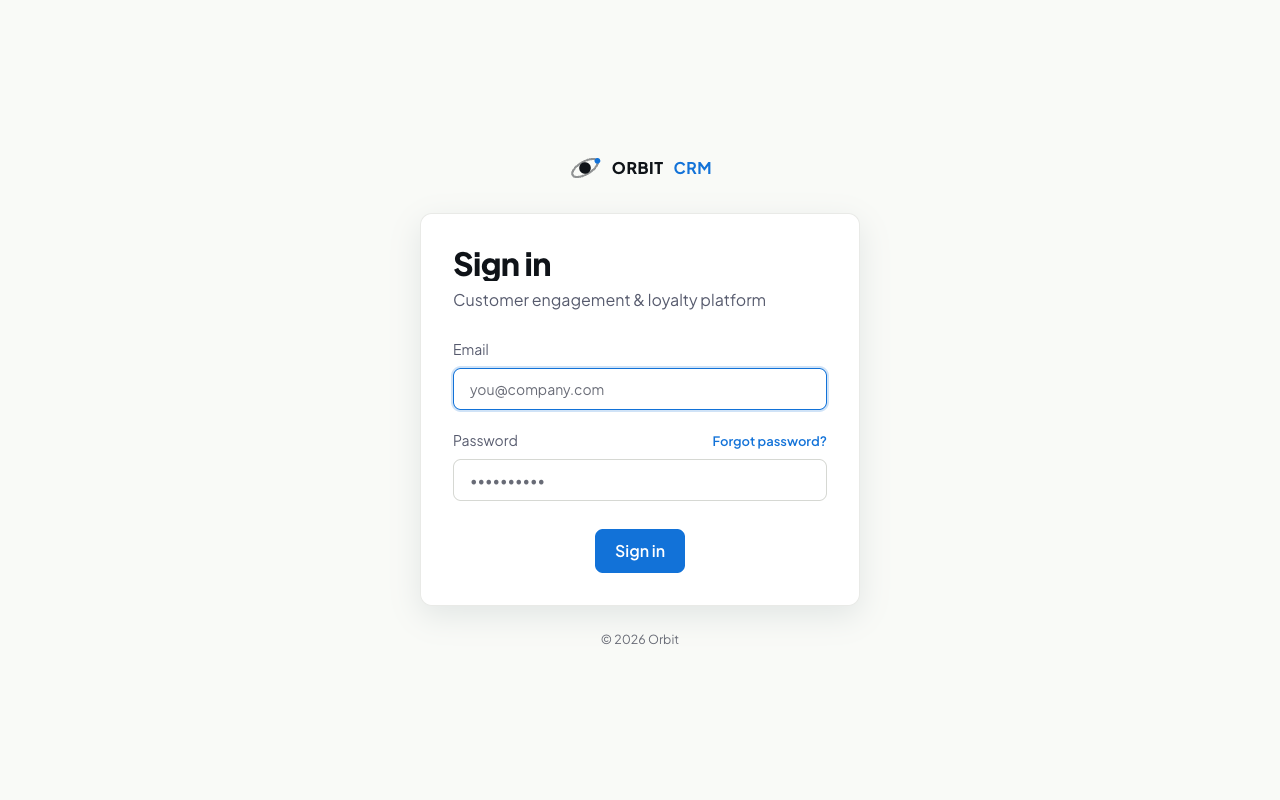
- Open the sign-in page. The title is Sign in, and the mark above the form reads ORBIT CRM.
- Type your address in Email.
- Type your password in Password.
- Press Sign in. While the account is checked, the button reads Signing in….
When the password is right and the account still owes a code, you are not in the app yet. The page becomes Set up two-factor, or Two-factor. Set up two-factor sign-in and Sign in with a recovery code cover those screens.
When the email or the password is refused, the form says Invalid email or password. That same sentence is used when the address is not an account, and when the account is not active. The page does not say which of those it was.
Any other failure, including too many tries in a short time, shows Could not sign in. Is the API running? Wait a minute, then press Sign in again.
If you were sent here while opening a page, you go back to that page. If you opened sign-in on its own, you land on Dashboard, under CRM. The subtitle names the active brand and says the figures are each against the period before. Opening the sign-in page while you are already signed in sends you to Dashboard as well.
Forgot password? sits on the same row as Password. It opens the reset page with the email you have already typed.
Warning
Sign-in accepts the password already stored on the account. The length rule, at least 8 characters and at most 72 bytes, applies when you set a new password, not when you sign in.