Appearance
A push can open an Orbit link. The click opens your site, and the link runs there once the player is on it. It waits about 2 minutes. A player who opens the site later is not sent into that link.
Before you start
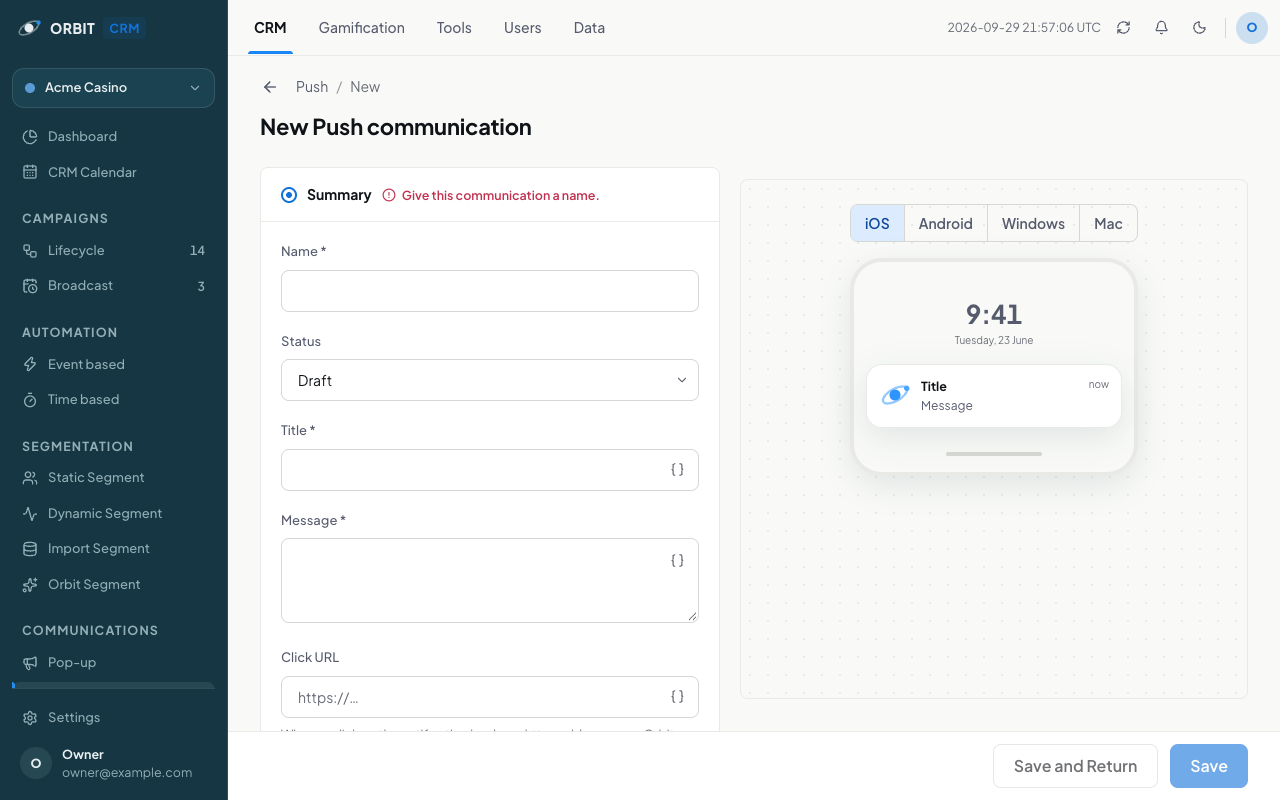
Open CRM, then Communications, then Push, and open the message, or click Create. Title and Message are required before the push can be saved.
- Set Click URL. The hint says an https address, or an Orbit deep link (orbit://inbox, orbit://store, orbit://profile, orbit://missions/ and the mission id), which opens your site and runs there once the player is on it.
- Optional: set Button 1 text and Button 1 link, and the same pair for button 2 and button 3. The note under the fields says each button opens its own link, an https address or an Orbit deep link, like the Click URL.
- Click Save. The page says Saved. Save and Return saves and goes back to the list.
Chrome, Edge and Android show the first two buttons. Safari and iPhone show none, and the notification opens the Click URL. A button with no text, or with a link Orbit cannot open, is left off the notification. Button text is shortened to 40 characters.
An Orbit link needs the brand's site. The click opens that site, and the Front Script runs the action once for that push and that click. The same four links work here as on a Deep Link step: inbox, store, profile, and one mission. dp:inbox opens the inbox. dp:gamification opens the profile. Another dp: target, a script, or a link that is not https leads nowhere. A push does not hand those to the site the way an inbox button can.
How long the notification itself may be delivered, and how many devices it may reach, is Push validity and devices.
Warning
Without a site for the brand, an Orbit link on Click URL or on a button opens nothing. An https address still opens.
Tip
Put the Orbit link on Click URL when many players use Safari or iPhone, because those notifications have no buttons.