Appearance
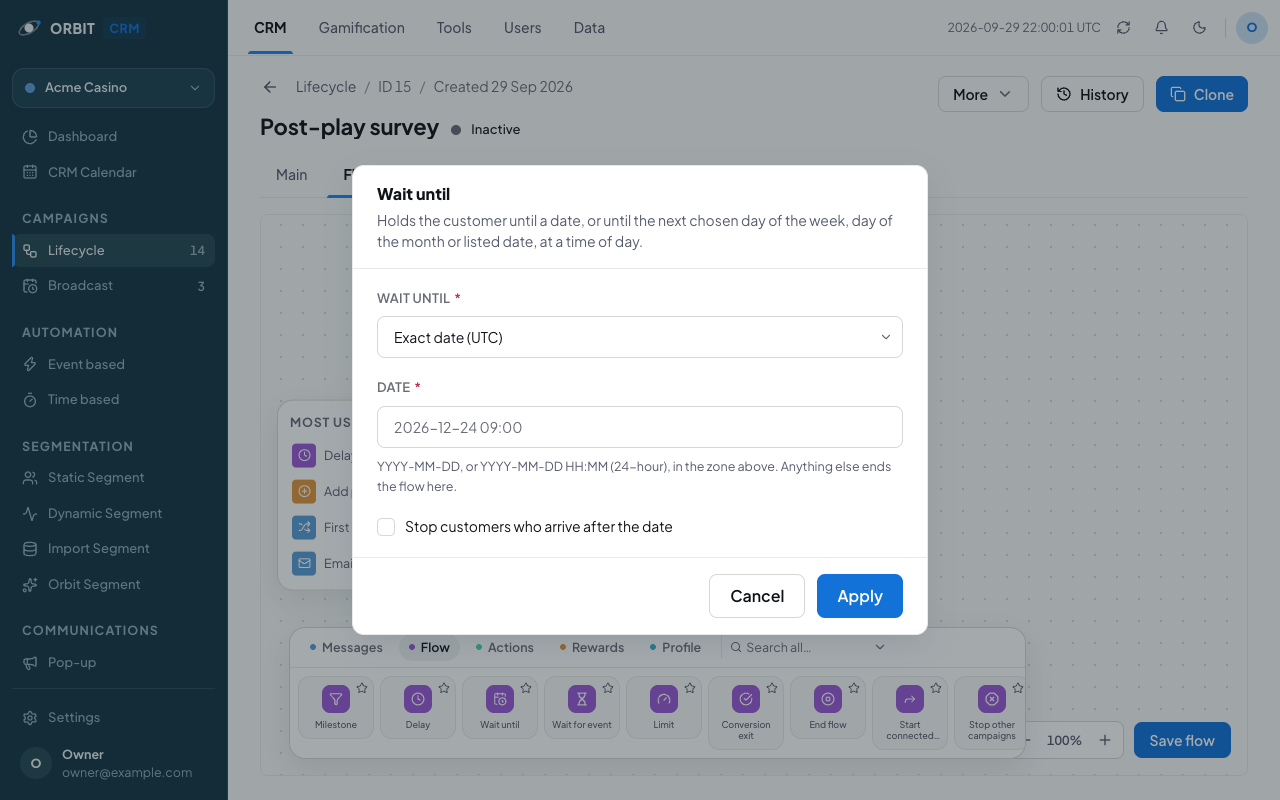
Wait until can hold a customer until the next date in a list, at one time of day, and then continue through Time passed.
Before you start
Open CRM, then Campaigns, then Lifecycle, open the lifecycle campaign, and open the Flow tab. On a new campaign that tab stays disabled until you save once from Main.
- Under Flow, click Wait until, then click the activity.
- Open Wait until and choose Specific days (UTC) or Specific days (brand time zone).
- Under Dates, type each day as YYYY-MM-DD, separated by commas. You can list up to 50. The field’s example is
2026-11-27, 2026-12-24. - Under Time of day, type HH:MM. Empty is midnight, in the zone the Wait until choice uses.
- Decide what happens after the last date. Turn on Stop customers who arrive after the last date when a late arrival should stop here. Leave it off and a late arrival continues immediately.
- Read Next releases, click Apply, connect Time passed to the next activity, and click Save flow.
Specific days (brand time zone) uses the brand time zone. Customer time zones are not stored, so this uses the brand time zone fallback.
A date that is not a real calendar day, such as 2026-02-30, is refused. Each date must be YYYY-MM-DD.
When every listed date has passed, Next releases says so: customers arriving now are handled by the setting above. With the stop turned on, they stop here. With it off, they walk on at once.
Warning
More than 50 dates, a blank list, or a time that is not HH:MM marks the activity Ends the flow here. The save refuses that once the campaign is live.
Tip
A customer who arrives at the release time walks on at once. One who arrives a minute later waits for the next date in the list.