Appearance
Defining a custom field sets its type. A lifecycle flow’s Update property step then checks every value against that type. Segments and flows read the type after you save it.
Before you start
You need the Owner or Manager role. Choose the brand first. With no brand selected, the screen says Select a brand to view custom fields.
- Open Tools, then Data, then Custom Fields. The page title is Custom fields.
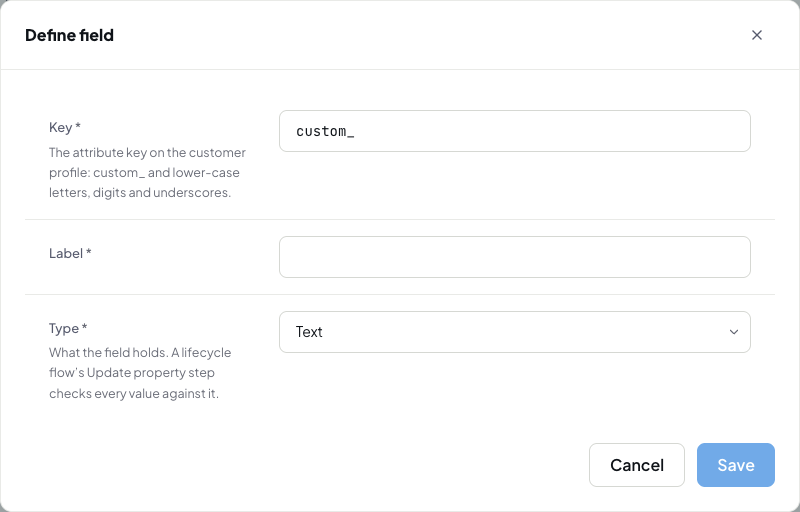
- Click Define field.
- Under Key, type the attribute key. It starts with
custom_, then lower-case letters, digits and underscores. The hint on the field says the same thing. A key that does not match shows Use custom_ followed by lower-case letters, digits and underscores. - Under Label, type the name people see. The label is required.
- Under Type, choose what the field holds:
- Text
- Number
- Yes / No
- Date
- Option
- If you chose Option, fill Options. Separate them with commas, for example
gold, silver, bronze. A flow can set only these. List at least one option if the list is empty. - Click Save.
The table then shows Key, Type, Customers with a value, Share, Value types seen and Last profile update. Search by key filters the rows. A key that is not defined yet shows Not defined. A key that does not start with custom_ shows Not a custom_ key, and it cannot be defined here.
The type is fixed once defined: segments and flows read it. You can still change the Label. For an Option field you can still change Options. You cannot switch a saved field from Text to Number, or to any other type.
Click a row to open it. On a key that is Not defined but that customers already hold, the editor lists Values seen on customers so far. Values already stored are not changed when you define the type. Click a defined row to change its Label or, for an Option field, its Options.
Warning
Only an Owner or a Manager sees Define field. An empty brand shows No custom fields yet, and tells you to define a field so a lifecycle flow can set it.
Tip
Defining the field here is what lets Update property write it. Your Orbit admin can find the integration guide under Tools.