Appearance
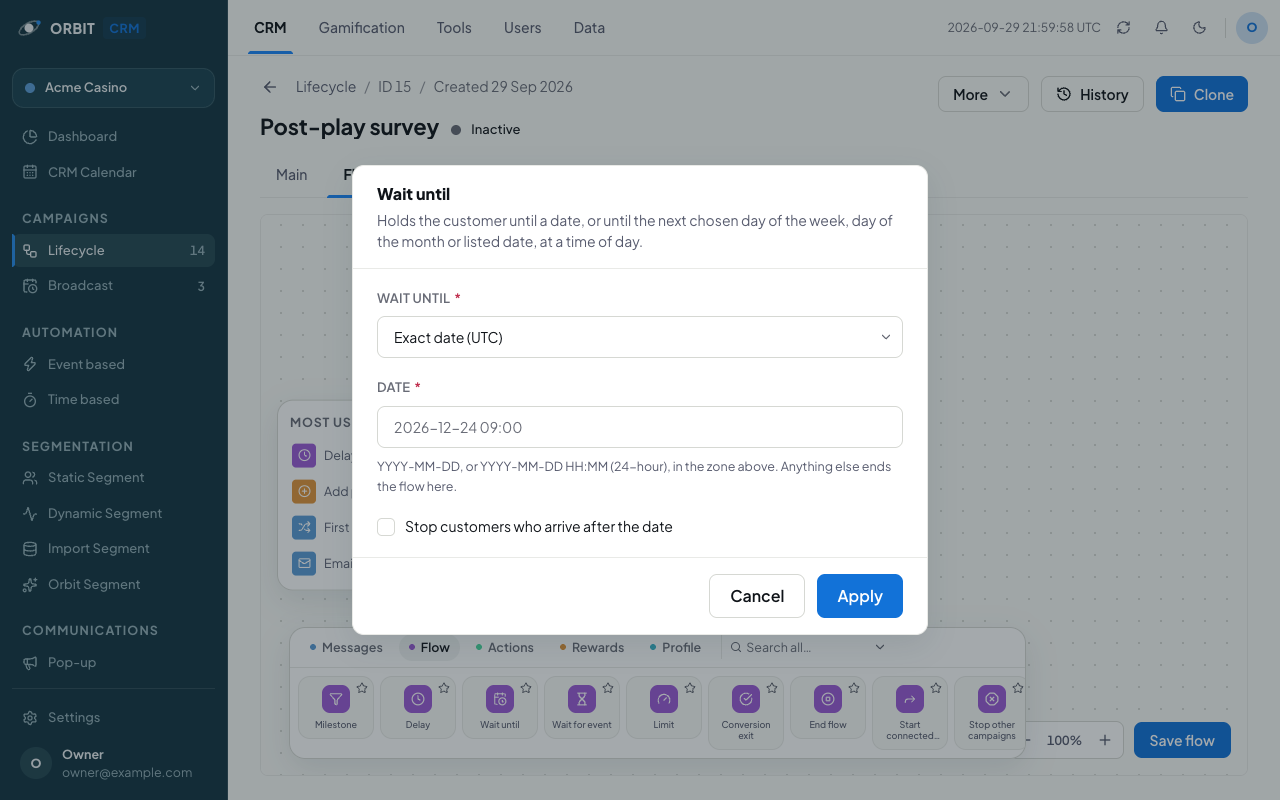
Use Wait until when the next step should wait for a day of the month, such as the 1st, the 15th, or the last day, and then continue through Time passed.
Before you start
Open CRM, then Campaigns, then Lifecycle, open the lifecycle campaign, and open the Flow tab. On a new campaign that tab stays disabled until you save once from Main.
- Under Flow, click Wait until, then click the activity on the canvas.
- Open Wait until and choose Specific day(s) of month (UTC) or Specific day(s) of month (brand time zone).
- Under Days of the month, type the days separated by commas. Use numbers from 1 to 31, or last. The field’s example is
1, 15, last. - Under Time of day, type HH:MM in 24-hour form. Empty means midnight.
- Check Next releases. A customer who arrives exactly on a release walks on at once. Anyone who arrives after it waits for the next listed day.
- Click Apply, drag from Time passed to the next activity, and click Save flow.
A day the month does not have is that month’s last day. 31 in April, and 30 in February, both land on the last day of that month. last is always the last day.
Specific day(s) of month (brand time zone) follows the brand time zone. Customer time zones are not stored, so this uses the brand time zone fallback. The UTC choice reads the calendar day in UTC.
Warning
“32”, “0”, or a word other than last is refused. The message names the value and asks for numbers from 1 to 31, or “last”. Leave the list empty and the activity ends the flow here.
Tip
You can list several days. The customer is released on the next one that is still ahead, at the time of day you set.