Appearance
Create stores a Quiz and the questions on it. The list header reads Configured — not live yet. A new quiz keeps that mark. A saved quiz shows Live only while a published run is open.
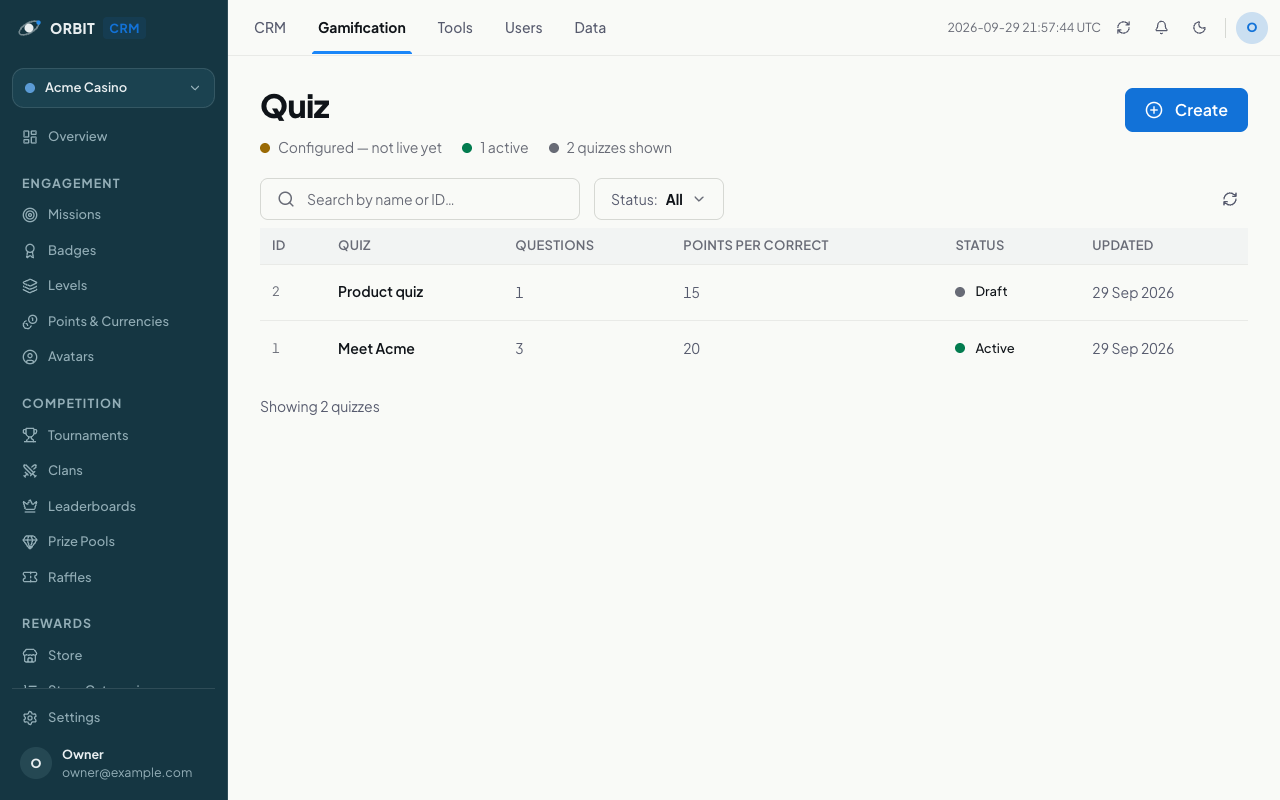
- Open Gamification, then Mini Games, then Quiz. The header shows Configured — not live yet.
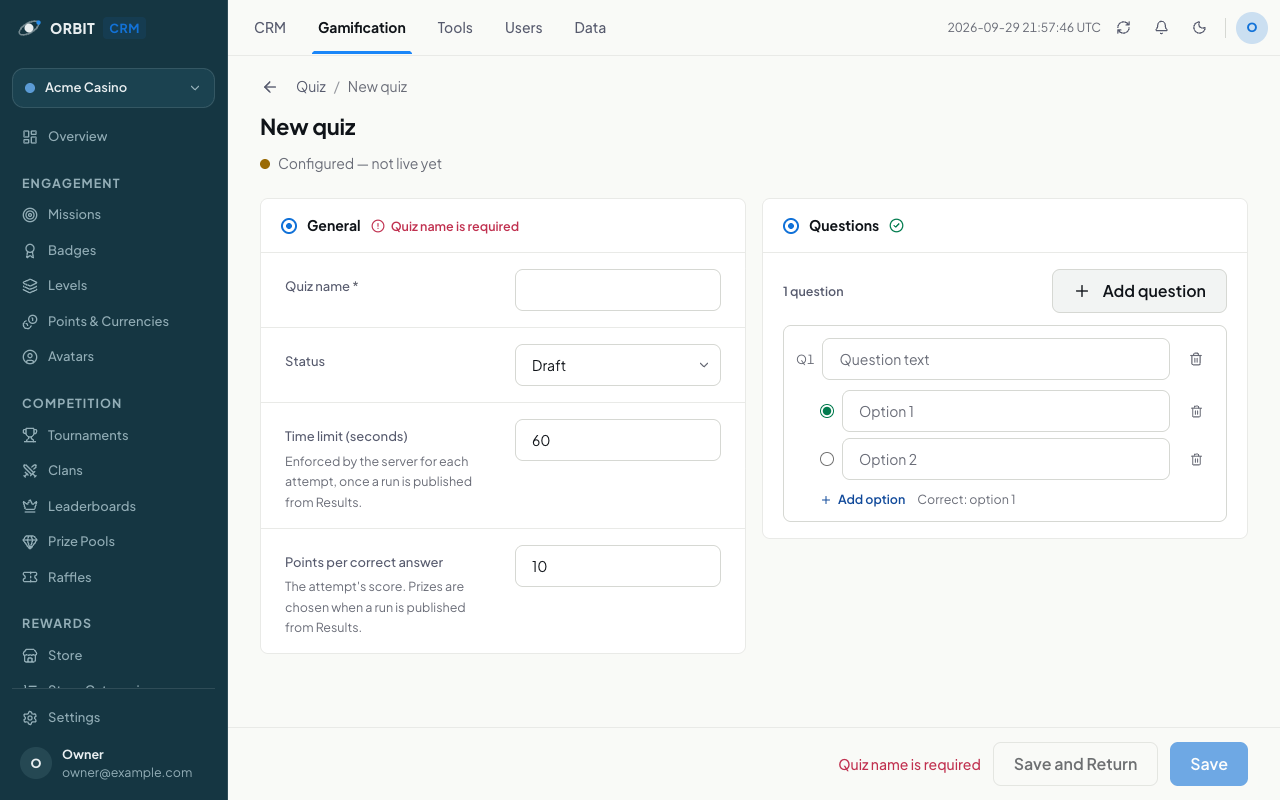
- Click Create. The page is titled New quiz and keeps that header line.
- Quiz name is required. Empty, Save shows “Quiz name is required”.
- Status is Active, Draft or Inactive.
- Time limit (seconds) sits on General. The hint reads “Enforced by the server for each attempt, once a run is published from Results.” The score field is Score per correct answer. Its hint reads “Results score only; this does not credit the player’s points balance. Prizes are chosen when a run is published from Results.” The list column is still Points per correct.
- On Questions, click Add question. The placeholder on the question is Question text. Each option starts as Option 1, Option 2, and so on. The radio beside an option is Mark as the correct answer. The line under the options reads “Correct: option” and the number of the marked one.
- Add option adds another answer. Remove option deletes one, and it stays disabled while a question has a single option. Remove question deletes the whole question.
- With no questions, the card says “No questions yet. A run can be published once the quiz has at least one question.”
- Save shows Saved. Save and Return goes back to Quiz. Clone copies a quiz you have already saved.
Search the list with Search by name or ID… and filter Status. A row opens that quiz.
Warning
Active updates the active count. The list header still reads Configured — not live yet, including after a run is open. Publish the run from Results.