Appearance
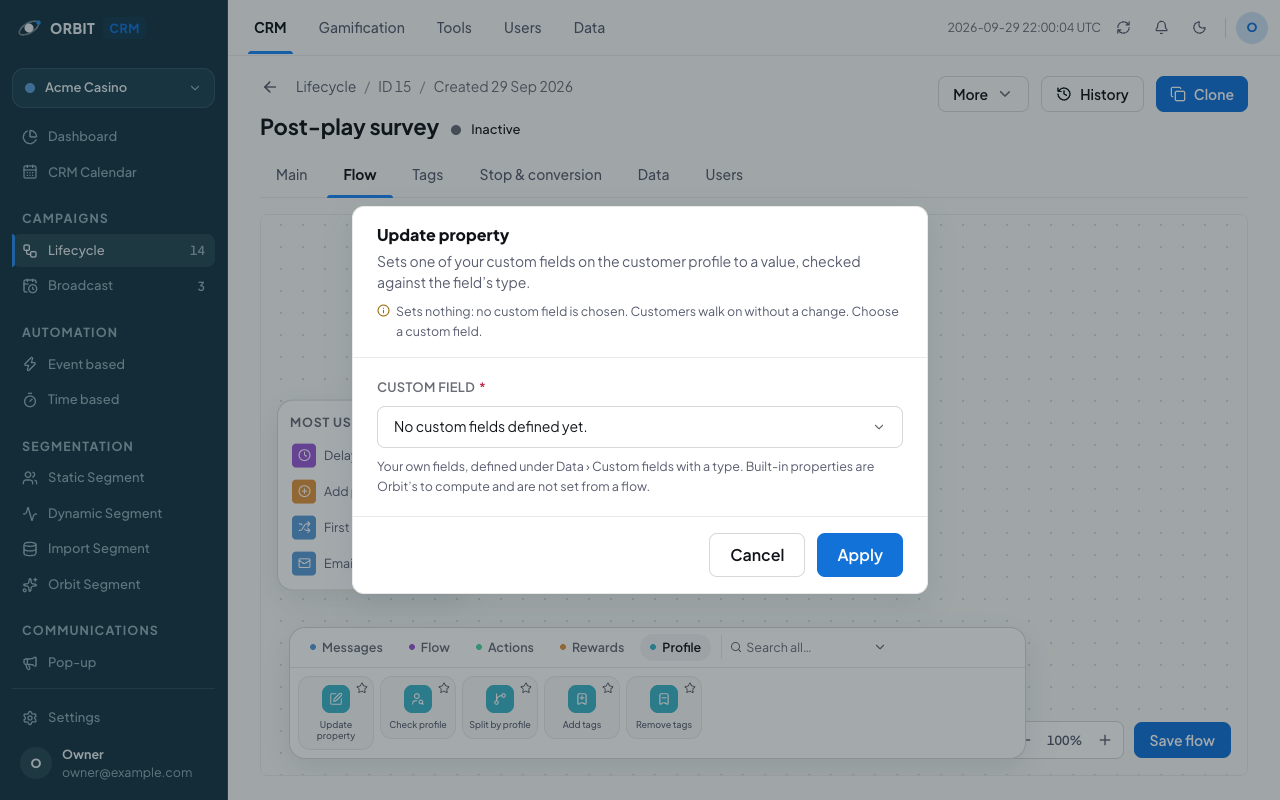
Update property sets one custom field on the customer who reaches the step. The value is checked against that field’s type. The flow then continues through Then.
Before you start
Define the field and its type first. Open Tools, then Data, then Custom Fields. The screen title is Custom fields. An Owner or a Manager uses Define field. A flow can set Text, Number, Yes / No, Date, or Option only.
- Open CRM, then Campaigns, then Lifecycle, open the lifecycle campaign, and open the Flow tab. On a new campaign that tab stays disabled until you save once from Main.
- Under Profile, click Update property. Click the activity.
- Under Custom field, choose the field. The row shows the label, the key, and the type: text, number, yes / no, date, or option.
- Under Value, enter what the step should write.
- Number: a point for decimals and no thousands separators, such as 1000.50.
- Yes / No: choose Yes or No.
- Date: YYYY-MM-DD, or YYYY-MM-DD HH:MM in UTC.
- Option: one of the field’s options.
- Text: written exactly as typed.
- Click Apply. Drag from Then to the next activity, and click Save flow.
The value is set when Orbit records the change, a moment after the customer passes the step. Built-in properties are Orbit’s to compute and are not set from a flow.
If the field was saved before Update property set custom fields, and it does not name a custom field of this brand, the activity is marked Sets nothing. Customers walk on without a change. Choose a custom field.
Warning
Apply stays off while the value does not match the type. A number that is too large, a date Orbit cannot read, or an option that is not on the field all block Apply. An empty value does not block Apply, but the flow save refuses it and asks you to write the value to set.
Tip
Changing the custom field clears Value, so you type it again for the new type. If the list says No custom fields defined yet, define one under Custom fields and reopen this activity.