Appearance
Finish sign-in by pairing an authenticator app, then keep the recovery codes somewhere safe.
- On Sign in, enter Email and Password, then press Sign in.
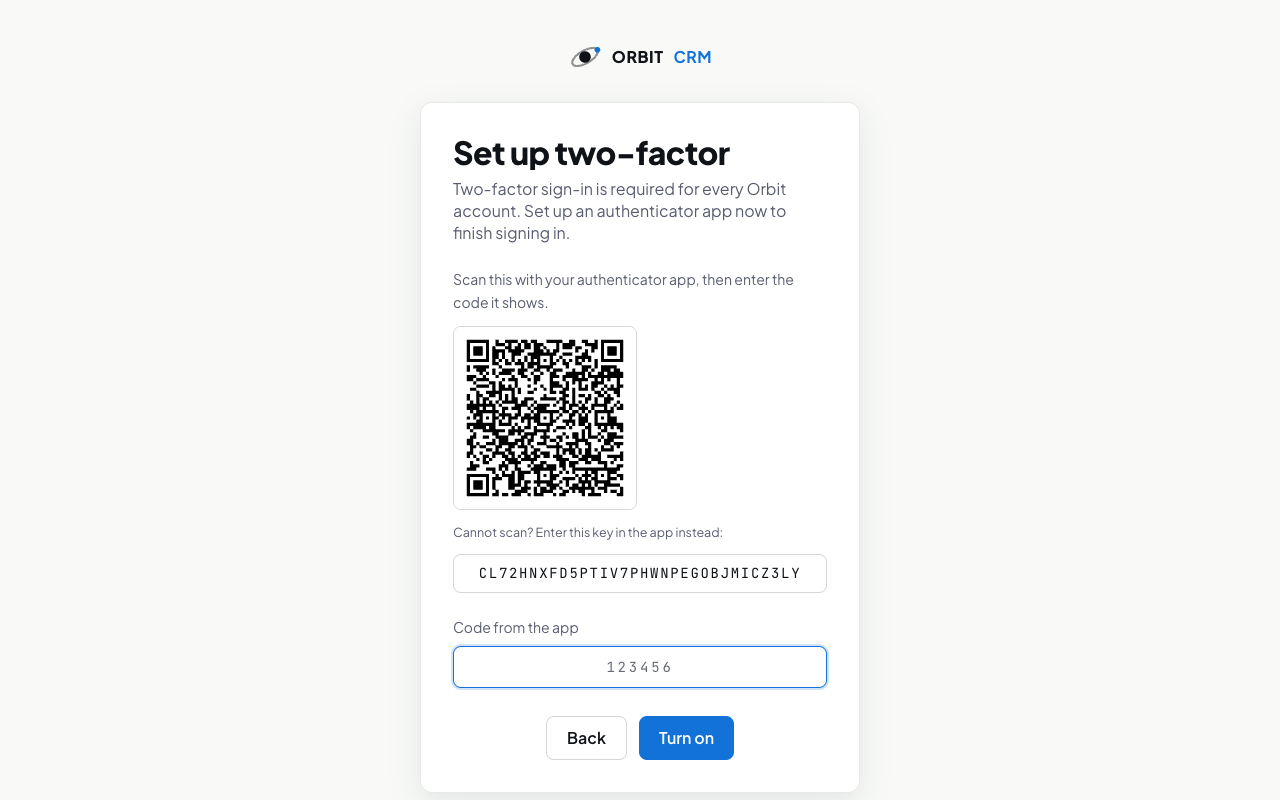
- The title becomes Set up two-factor. The subtitle says two-factor sign-in is required for every Orbit account, and to set up an authenticator app now to finish signing in.
- Press Start setup. While it runs, the button reads Starting…. Could not start the setup means it did not begin. Press Start setup again.
- The page says to scan this with your authenticator app, then enter the code it shows. The image is the QR code for your authenticator app. If the app cannot scan, the line under the image is Cannot scan? Enter this key in the app instead: and the key sits under that line. Type that key into the app.
- Code from the app is the field. The placeholder is 123456. Press Turn on. While it checks, the button reads Checking…. That code is not right. Check the app and try again. means the code did not match. Wait for a new code in the app and try again.
- The title becomes Two-factor is on. Keep these recovery codes somewhere safe. Each one works once, and they are shown only now. Keep every code on the list before you leave this page. The page does not show them again.
- The line under the codes says to sign in again with a code from your authenticator app to finish. Press Back to sign in. Sign in with Email, Password, and a code from the app.
Back, before the codes appear, returns to Email and Password. Two-factor is not on until Turn on succeeds.
Warning
The recovery codes are the way in when you cannot open the authenticator app. A code that was not kept cannot be looked up later on this page.