Appearance
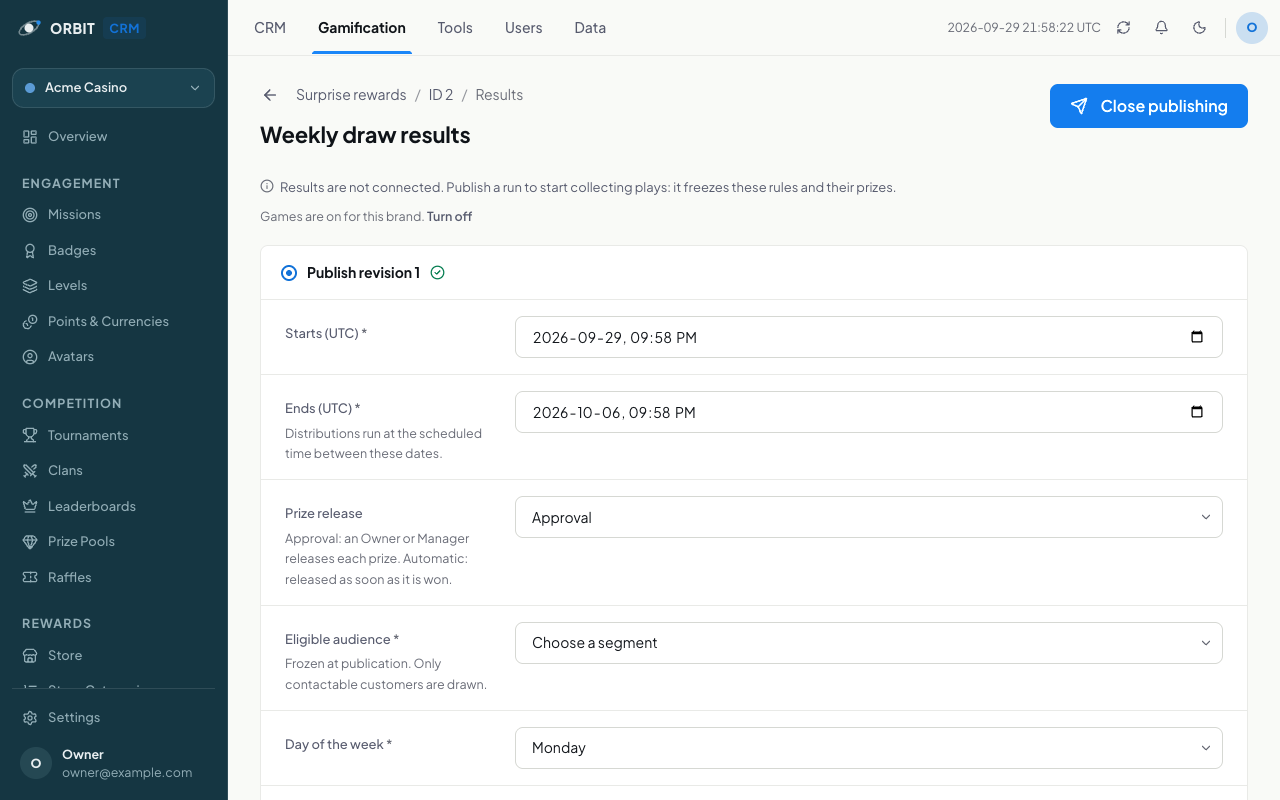
Surprise reward Results lists selections and claims, not quiz attempts. Open Gamification, then Mini Games, then Surprise rewards, open the reward, and click Results.
Before you start
Results are not connected until an Owner or a Manager publishes a run. Publishing freezes the prizes, the schedule and the eligible audience.
- Use Distribution to pick one distribution, or leave Latest. Each choice is the time that distribution ran. The header still shows Open or Ended, and Run by Orbit or Operator supplied.
- Set Outcome to Received or Expired, or leave it open so you see every row. Search Customer ID or name and click Search.
- Read Eligible, Selected recipients, Claimed, Received and Expired. A missing number is —, not zero.
- In the table, Prize is what was selected. Selected and Claimed are the times. Claim window is the window they had. Result reads Selected.
- Prize status follows the prize: Ready to claim, Received, Expired, Awaiting approval, Queued, Blocked, Refused, Not confirmed or Allocated. No prize means that row has none.
- Click the row. Prize repeats the status and any reason. An Owner or a Manager can Approve this prize when the status is Awaiting approval.
Approve waiting prizes releases the waiting prizes for the distribution you are viewing. There is no Stop run on Surprise rewards. Refresh reloads the page. Previous and Next move through the rows.
On the site, Ready to claim shows Claim and Claim by. After the window, the result on this page can show Expired.
Warning
Eligible counts the frozen audience for that distribution. Selected recipients are the ones Orbit drew. A customer who is not contactable is not drawn, even if they sit in the segment you chose at publish time.
Tip
Days to claim is set when you publish. It is the claim window you see on each row, not a timer you can edit on this table.