Appearance
Create the layout an email can sit on, then point From a template at it.
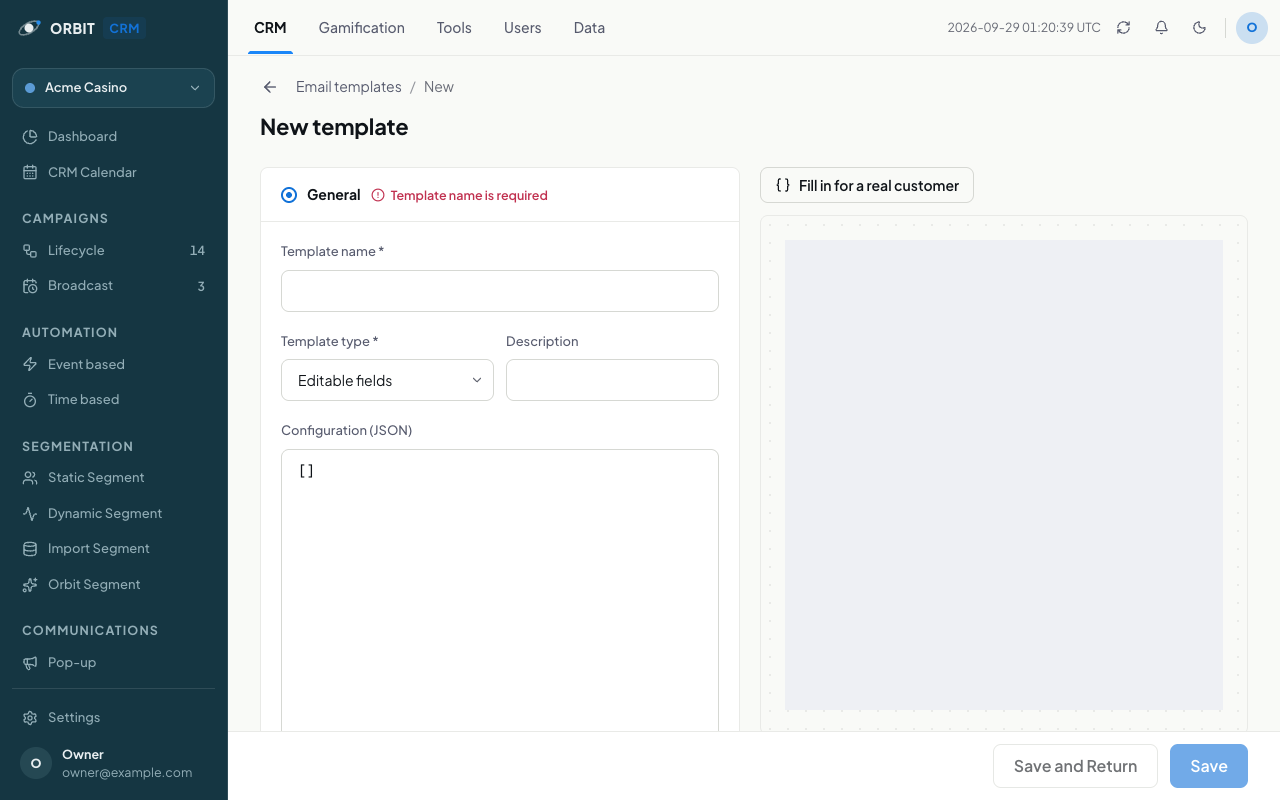
- Open CRM, then Templates, then Email. The title is Email templates. The subtitle is the same skeleton line as on Pop-up templates: layout and styling here, copy in the communication.
- Press Create.
- The title is New template. Fill Template name. Template type is Editable fields or HTML only. Description is optional. Configuration (JSON) lists the fields the email editor should ask for. Body (HTML & CSS) is the frame those fields drop into. The hint under the body explains the two kinds of placeholder: one is filled once for the email, and a profile variable is filled per recipient at send.
- Watch the preview as you edit the body. A JSON error on Configuration blocks the save. Fix the array, then press Save or Save and Return.
- Open Communications, then Email, then Create, then From a template. Search templates by name narrows a long list, and the heading My templates stays. Press Select Template. Subject, Preheader, and the fields from Configuration are filled there. The preview on the email is this body with those values. Email builder does not use this template. That mode builds the body from blocks and has no template picker.
Clone, on a template you have already saved, makes another copy and opens it. The list column Usage counts how many emails point here. The small Preview on the list is the same body, scaled down.
An empty list says to create one, then start a communication from it with Create › From a template. That is this page’s Create.