Appearance
Build a segment from who the customer is, and count the match before you save it.
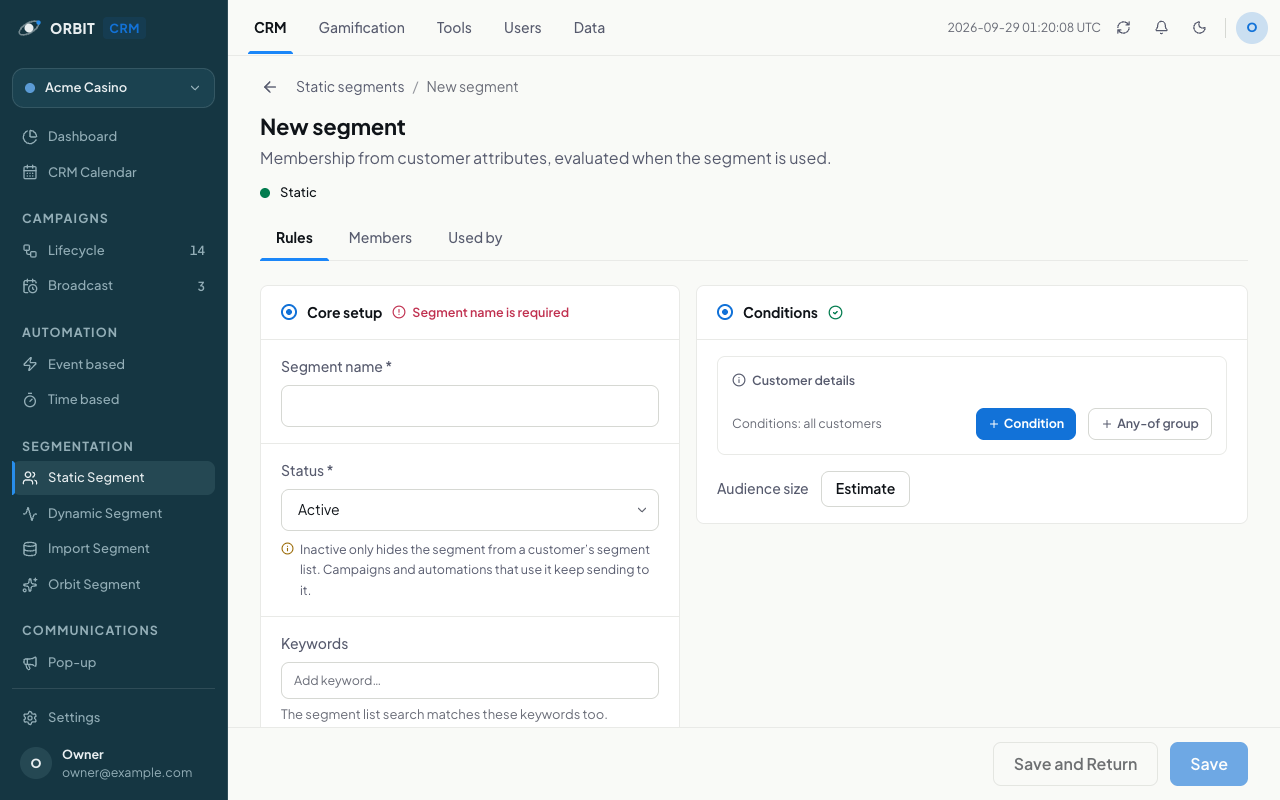
- Open CRM, then Segmentation, then Static Segment. The page title is Static segments. The line under it says membership comes from customer attributes, evaluated when the segment is used. The list opens with Status on Active. Open Status and pick All when you also want Inactive.
- Press Create. The title is New segment, and the same line sits under it. The tabs are Rules, Members, and Used by.
- On Rules, Core setup asks for Segment name. Status is Active or Inactive. Inactive only hides the segment from a customer’s segment list. Campaigns and automations that use it keep sending to it.
- The card beside that is Conditions. Customer details is the profile check. With nothing added, the line reads “Conditions: all customers”. Press + Condition to add a row. Pick the attribute, the operator, and the value. A second + Condition is combined with And. Press Any-of group when any one of several rows should be enough. Inside that group the line says “Any of these rules matches.” A money attribute, such as Core: total spend, says the amount is in the brand currency, and that a customer in another currency never matches. A date property prints the day under the box. The note reads “A day picked is the whole day in the brand's time zone.” See Pick dates in conditions and filters.
- Attributes include Core: country, Core: language, Core: total spend, Core: days since last purchase, Core: email opt-in, and Core: value score. Core: RFM segment is labelled RFM level in the picker. A long list opens a search box, Search…, and keeps its groups. No match means nothing fits. Operators include =, !=, contains, is one of, and is defined.
- Audience size sits under the conditions. Press Estimate. The line that comes back is how many customers can be reached, out of how many were counted. If more people match but may not be contacted, the line says so.
- Press Save, or Save and Return. Save stays off while the card says Segment name is required.
Members does not list anyone until you save. On a new segment it says “Save the segment first to list its customers.” After you save, an empty membership says “This segment selects no customers now.” Used by lists the campaigns and automations that point at this segment. A new one says it is not used by any campaign or automation yet.
The list column Number of users, after you save, is the same kind of count: how many customers this segment selects.