Appearance
Create the layout a Pop-up is built on. The words the customer reads stay on the Pop-up, not here.
- Open CRM, then Templates, then Pop-up. The title is Pop-up templates. The line under it says this is the skeleton a communication is built on: layout and styling here, copy in the communication.
- Press Create.
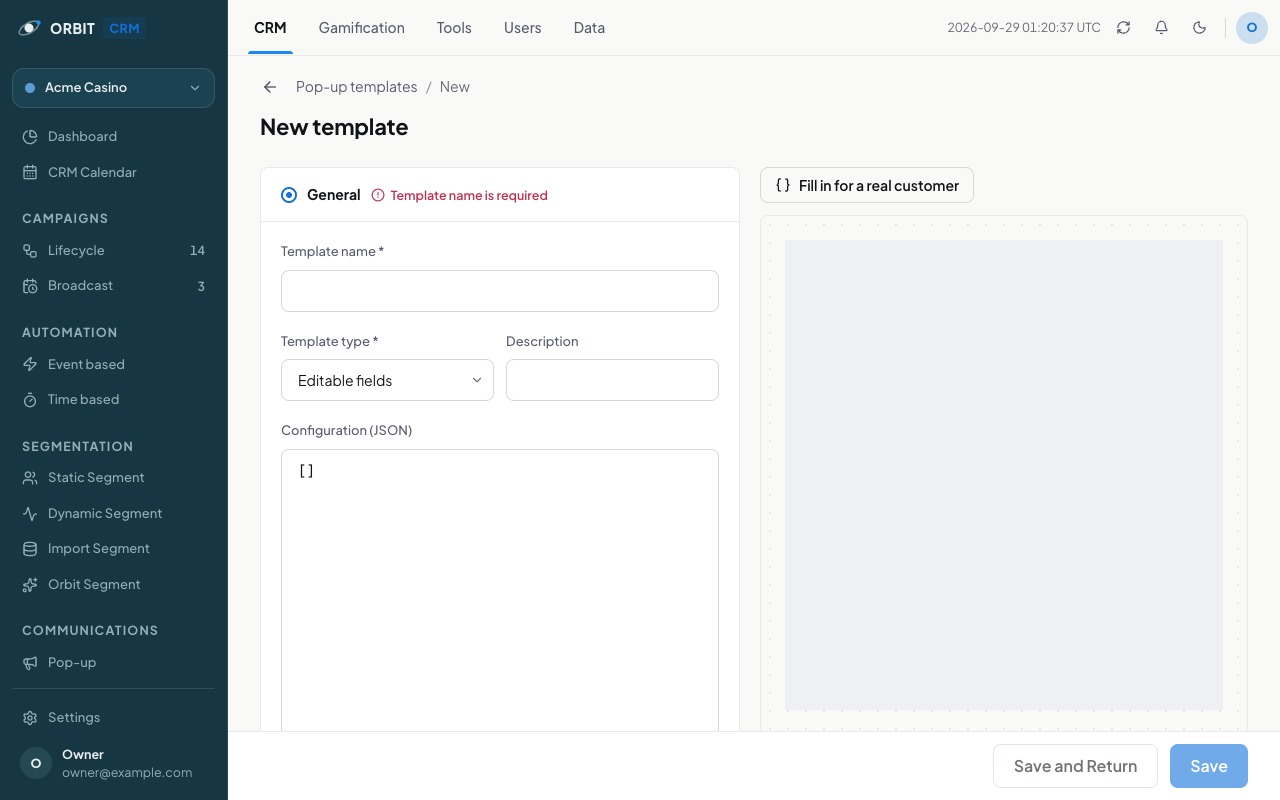
- The title is New template. The crumb is Pop-up templates, then New. The card General asks for Template name. Template type is Editable fields or HTML only. It starts on Editable fields. Description is optional.
- Configuration (JSON) is the sections, options, and fields the Pop-up editor will show. The hint says each field’s name becomes a form input and a placeholder. The box has to be a JSON array. If it is not, the error sits on the label and Save will not take a broken array. Body (HTML & CSS) is the frame. Placeholders in the body are filled once, per Pop-up, from those fields. A profile variable in the body is filled per recipient, at send.
- The preview on the right draws the body. Fill in for a real customer, when it is offered, shows the body the way a send would. Leave it off to see the placeholders.
- Press Save, or Save and Return. The list then shows the template, a Type of Editable fields or HTML only, a small Preview, and Usage. Usage counts the communications built on it.
An empty list says “No records yet” and “Create one, then start a communication from it with Create › From a template.” After this save, a new Pop-up on From a template can press Select Template. The Pop-up holds the copy. This template holds the layout.