Appearance
Deactivate and Reactivate change whether a member can sign in. Reset link creates a one-time link that sets a new password. You do this on Team & Permissions, on a member who is not the Owner and not you.
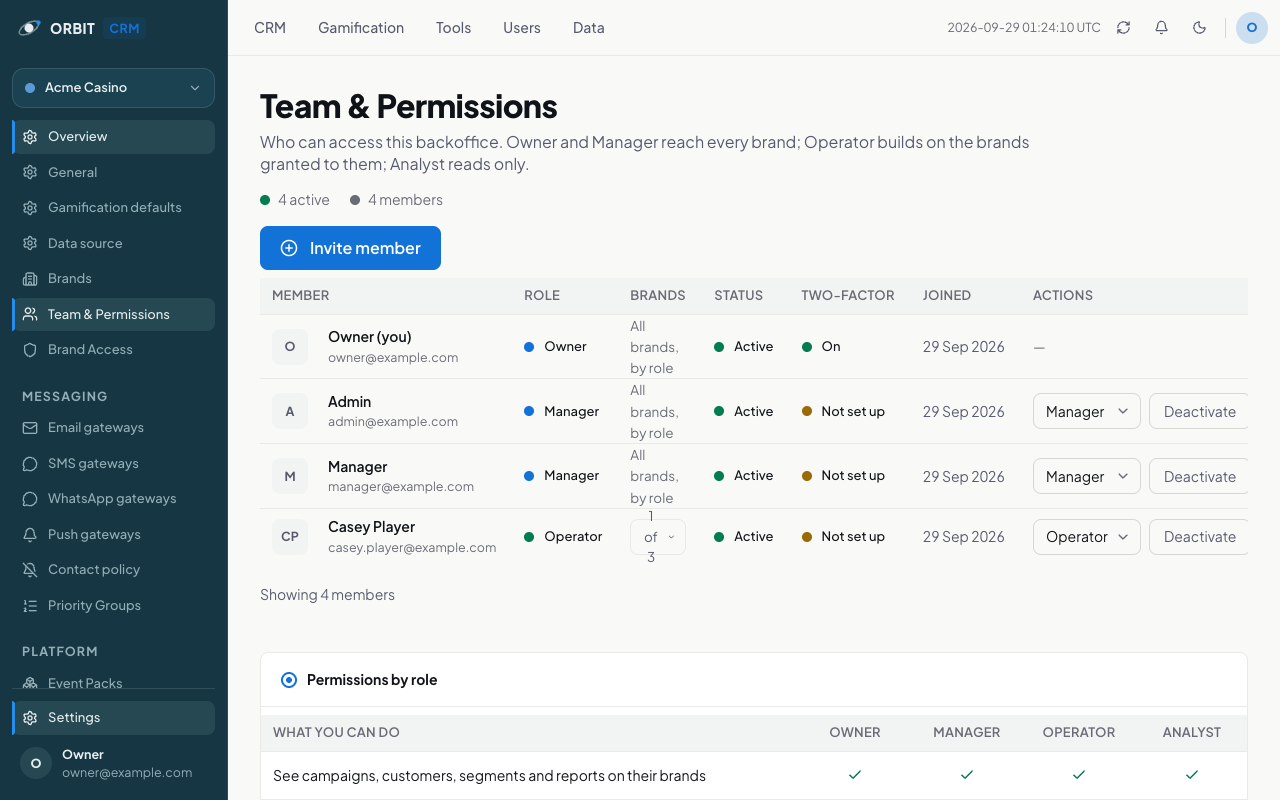
Before you start: the page shows Requires the Manager role unless you are an Owner or a Manager.
- Open Settings, then Team & Permissions. Find the member. Status reads Active or Deactivated. Your own row, and the Owner row, show an em dash in Actions instead of these buttons.
- To deactivate, press Deactivate. The button becomes Confirm? Press Confirm? to save. If you wait, Confirm? goes away and the member stays Active. To reactivate, press Reactivate. That saves at once, with no Confirm?.
- To send a reset, the member has to be Active. Press Reset link. The hint is Create a one-time link to set a new password.
- The dialog title is Password reset link. It names the person and the email, and says the link works once, for 30 minutes, replaces any earlier link that has not been used, and signs them out everywhere when it is used. Their current password keeps working until the link is used. When two-factor is on, the dialog also says Two-factor authentication stays on. The Two-factor column on the row reads On or Not set up.
- Press Create link. The title becomes Reset link created. Copy link copies it. The yellow line says the link is shown only once, and prints the time it expires. Press Done.
Send the link yourself. The member opens it on Set a new password. A later Reset link replaces one that has not been used.
Warning
Deactivate does not delete the member. Status becomes Deactivated, and sign-in for that account is refused with Invalid email or password. Reactivate is what lets them in again.