Appearance
See what the player widget can show today, and open it for one customer.
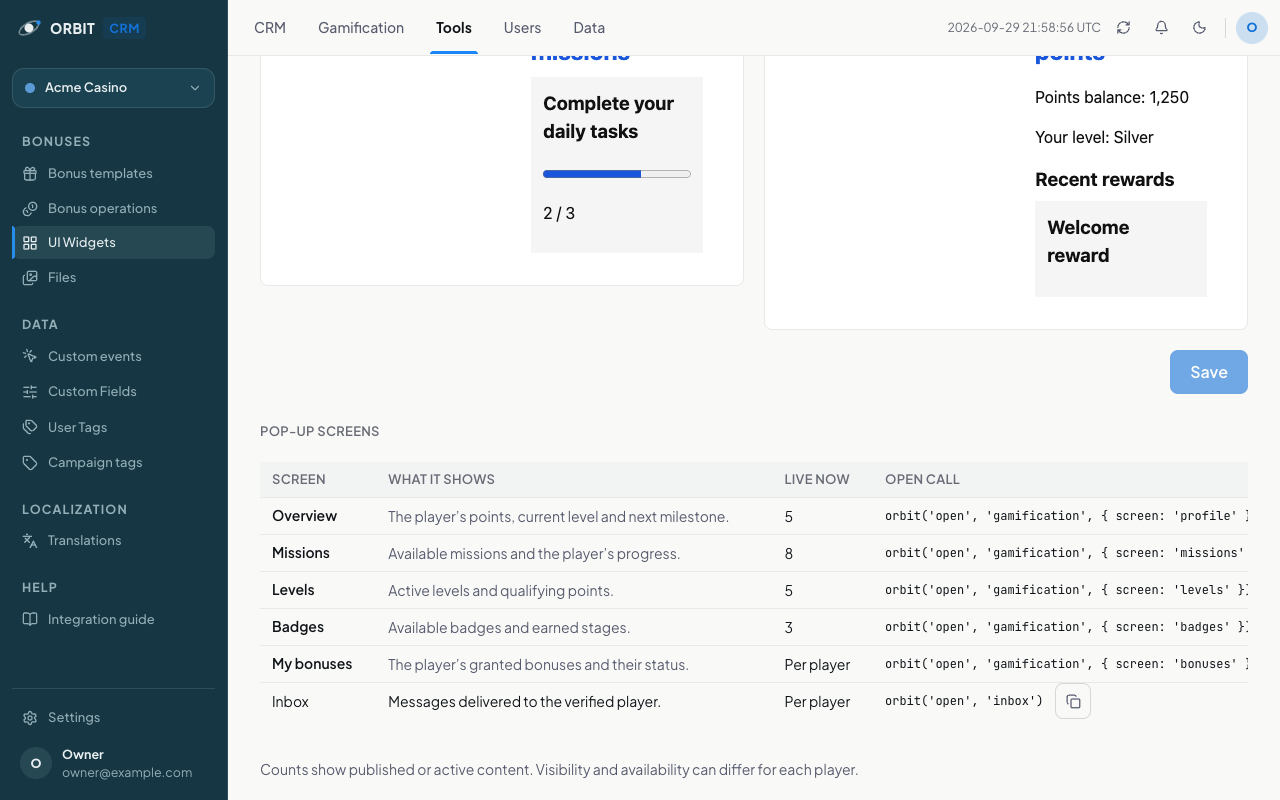
- Open Tools, then Snippets, on the Widgets tab. The title is Snippets. The subtitle says these are ready-made sections for your website, the player widget’s screens and the calls that open them. With no brand, the page says Select a brand to configure widgets. Inline presets, above the table, is its own task. The cards are Tournaments, Store scroll, Available missions, Profile and points, and Games. Theme on each card starts with the six player themes, Jackpot marked Default, then Earlier looks: Daylight, Midnight and Neon classic. Set up Snippets and Choose your players' theme cover that.
- The line under the title is Front Script enabled, or Front Script is off with Open integration settings. Your Orbit admin can find the integration guide under Tools. An Owner or a Manager also sees when the script was last seen, or Not seen yet. Anyone else sees “Owners and Managers can view when the script was last seen.”
- Pop-up screens is the heading on the table. The columns are Screen, What it shows, Live now and Open call. Live now is a count of published or active content, Nothing to show yet when that count is zero, or Per player when the screen depends on the person. The footer says counts show published or active content, and that visibility and availability can differ for each player.
- Open call shows the call for that screen, with Copy. Call copied confirms it. Could not copy. Select the call and copy it manually means the copy did not run.
- Preview for a customer asks you to search by name, email or external ID. Search customers is the box. Press a customer, then press See gamification. While it opens, the button reads Loading…. A red line under the button, such as Could not open the preview, means it did not open. The hint says the preview uses this customer’s real data. Search for a customer to open their widget is the line before you search. No customers match. Try another name or ID means the search missed.
Installing the script is not done on this page. The admin uses the integration guide.