Appearance
Give a custom event a name and a status, so the brand can recognise it when it arrives.
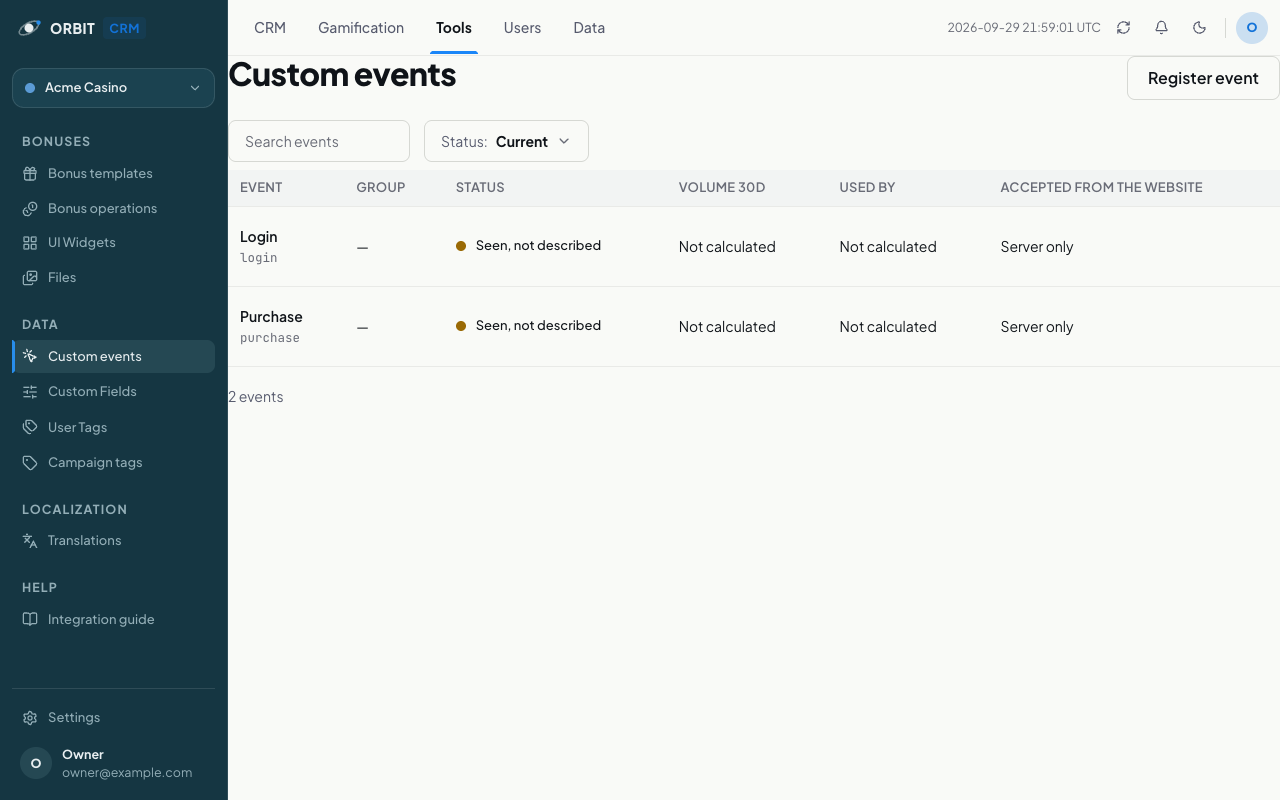
Before you start: Register event, Save, and Accepted from the website are for an Owner or a Manager. Anyone else can read the list. The line under Accepted says Owners and Managers change this.
- Open Tools, then Data, then Custom events. The title is Custom events. With no brand, the page says Select a brand to view custom events.
- Search events narrows the table by the label or the key. Status offers Current, Seen, not described, Active, and Retired.
- Press Register event. Key is required. The hint says lowercase letters, digits and underscores, and that it starts with a letter. Label is required. Group and Description are optional. Press Save.
- An event your platform sends, that no installed pack describes, also appears here the first time it arrives. Open its row to set Label, Group, Description and Status. Status on an existing event is Active or Retired. Seen, not described is how a newly seen event is marked until you describe it.
- Context properties lists what that event has carried. No context properties yet means none have arrived. Send an event with properties to discover them. On a property whose origin is custom, an Owner or a Manager can edit Label and Description and press Save property. Property saved confirms it.
- Accepted from the website is a switch on a key that starts with custom_. Turn Accepted on so the website may send that event. Other keys read Server only.
Volume 30d and Used by stay on Not calculated until the figures have been refreshed. No custom events yet tells you to wait for an undescribed event, or to register one before it is sent.