Appearance
See how broadcasts are grouped, and where two of them reached the same customer on one day. The groups are recorded. They do not hold a send back.
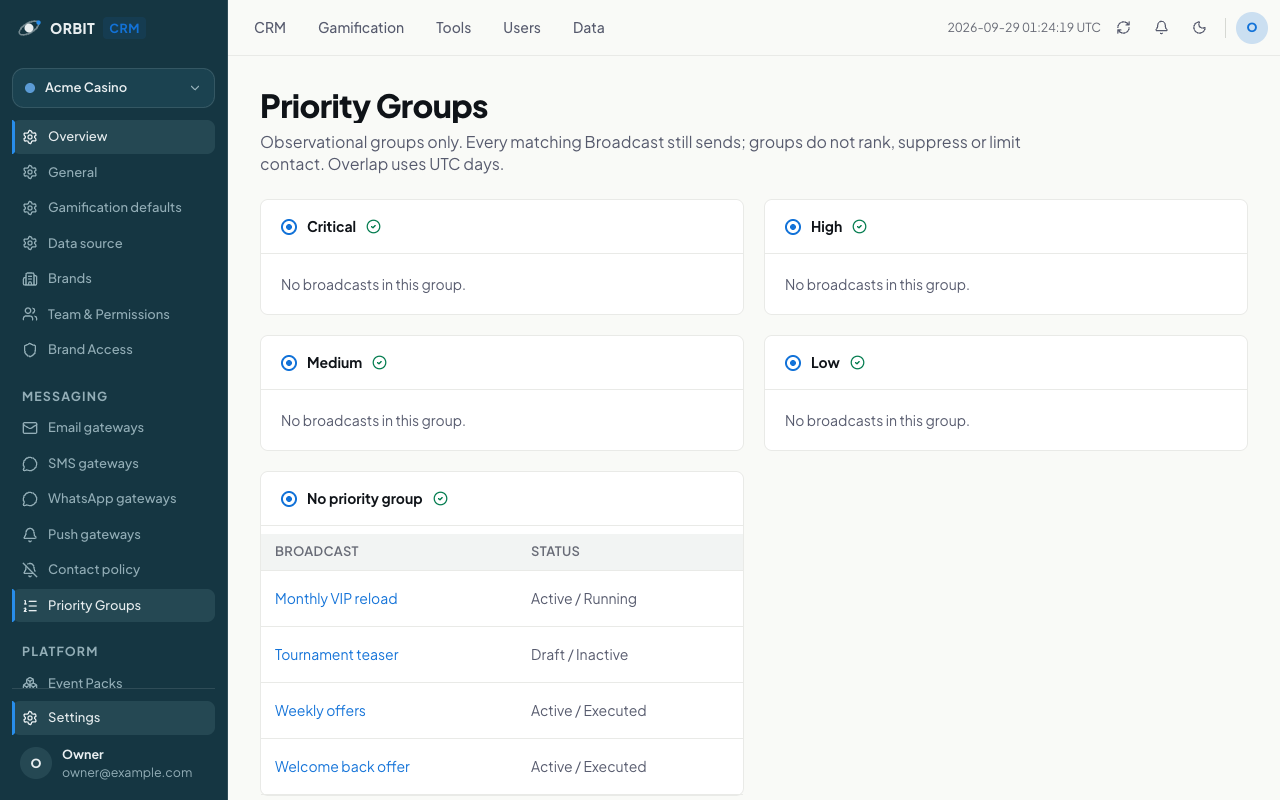
- Open Settings, then Messaging, then Priority Groups. The title is Priority Groups. The subtitle reads “Observational groups only. Every matching Broadcast still sends; groups do not rank, suppress or limit contact. Overlap uses UTC days.” With no brand, the page says Select a brand to see its priority groups.
- Each group is a card. A broadcast with no group is on the card No priority group. Inside a card, the columns are Broadcast and Status. Status is the campaign status, a slash, and the execution status. No broadcasts in this group means that card is empty. The broadcast name opens that broadcast.
- Same-day overlap has Period. The choices are Last 7 days, Last 30 days, Last 60 days and Last 90 days. It opens on Last 30 days. The columns are Day (UTC), Customers reached by 2+ broadcasts, and Customers reached by 3+ broadcasts. No customer received two broadcasts on the same day in this period means the range is clear.
- Broadcasts that share the most customers lists pairs. The columns are Broadcast, Shared with, Shared customers and Days. Each name shows its group in parentheses. No two broadcasts reached the same customer on the same day in this period means there is no pair.
The priority menu on a broadcast is stored and not applied. This page is where you read the overlap that menu does not prevent.