Appearance
The Missions report counts unlock, start, task, completion and reward-claim events by mission, for the dates you set. It is a report under Data, not the Missions setup under Gamification.
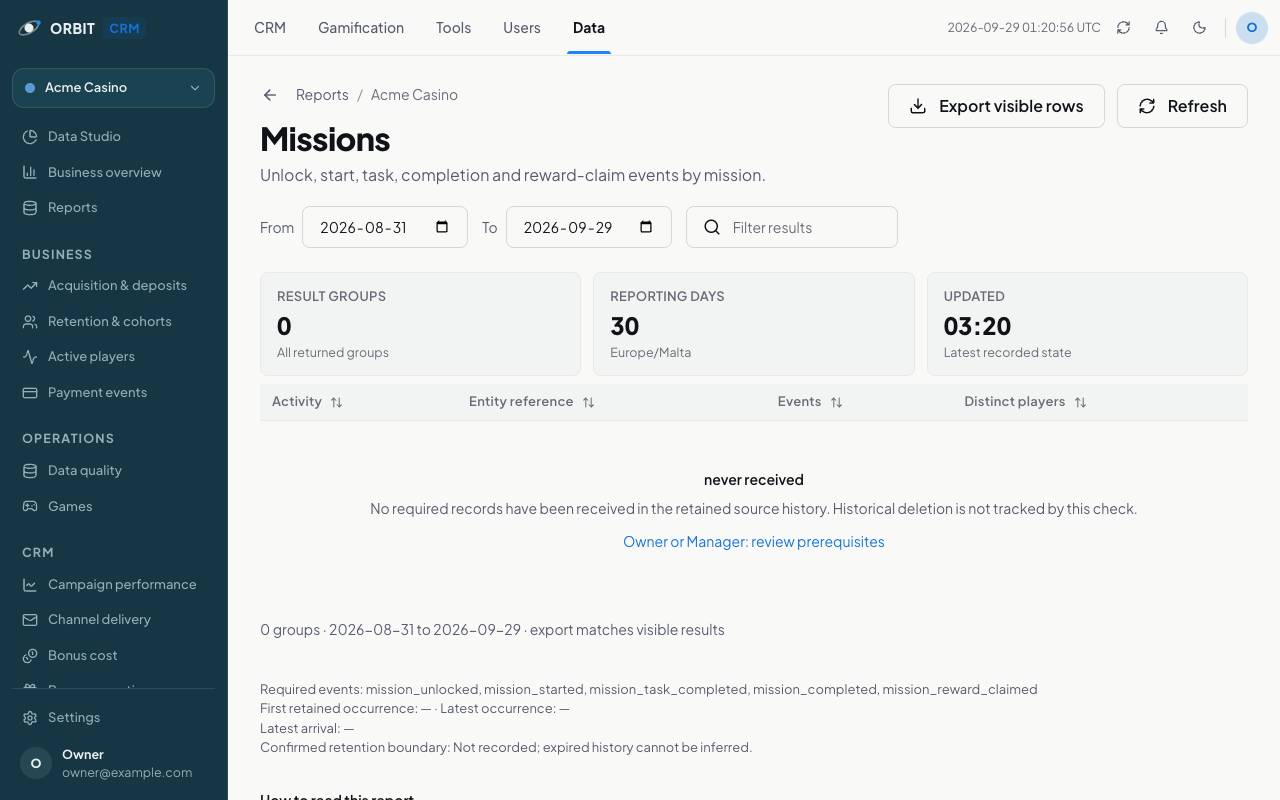
- Open Data, then Gamification, then Missions. The title is Missions. The subtitle says unlock, start, task, completion and reward-claim events by mission.
- Set From and To. The page opens on the last 30 days through today. The allowed span is 1 to 93 days. Outside it, you see Choose between 1 and 93 days.
- Press Refresh. Filter results searches the table. Press a column name to sort.
- Press Export visible rows for the rows on screen.
The columns are Activity, Entity reference, Events and Distinct players. Activity prints the event with spaces instead of underscores: mission unlocked, mission started, mission task completed, mission completed, and mission reward claimed. Entity reference is the mission name carried on the event, or Not linked when none was stored.
How to read this report says these are observed activity events, grouped by activity and entity. Distinct players are per row and cannot be added across rows. The counts are event counts. A completed activity does not prove its reward was fulfilled. Only events recorded by the installed engines appear. An unsupported or missing feed is not filled in.
The current calendar day is incomplete. When this brand has a horizon, How to read this report also says how many days of raw event history the brand keeps. Why does a report say it reached the history limit? reads that line. When Filter results hides every returned row, the table says No matching records, then Change or clear the filters to see other records. When the report itself has no rows, it shows the readiness state and its reason. If the list was cut, Result groups says First 200 groups; narrow the period.
Tip
On Reports, the Area for this row is Engagement, and Coverage is Available report. The side menu path is Data, then Gamification, then Missions.