Appearance
Save a Lifecycle as a starting point, then spin up a new draft from it without copying the audience or the history.
- Open a Lifecycle you want to keep. In the header, open More and press Save as template. The dialog title is Save as template. Template name starts as the campaign name plus the word template. Description is optional. The placeholder is “When should someone reach for this one?”
- If the campaign has unsaved changes, the dialog says they will be saved first, so the template matches what you see. Press Save template. A toast says Saved as, then the name, and offers Open. Open goes to Lifecycle templates.
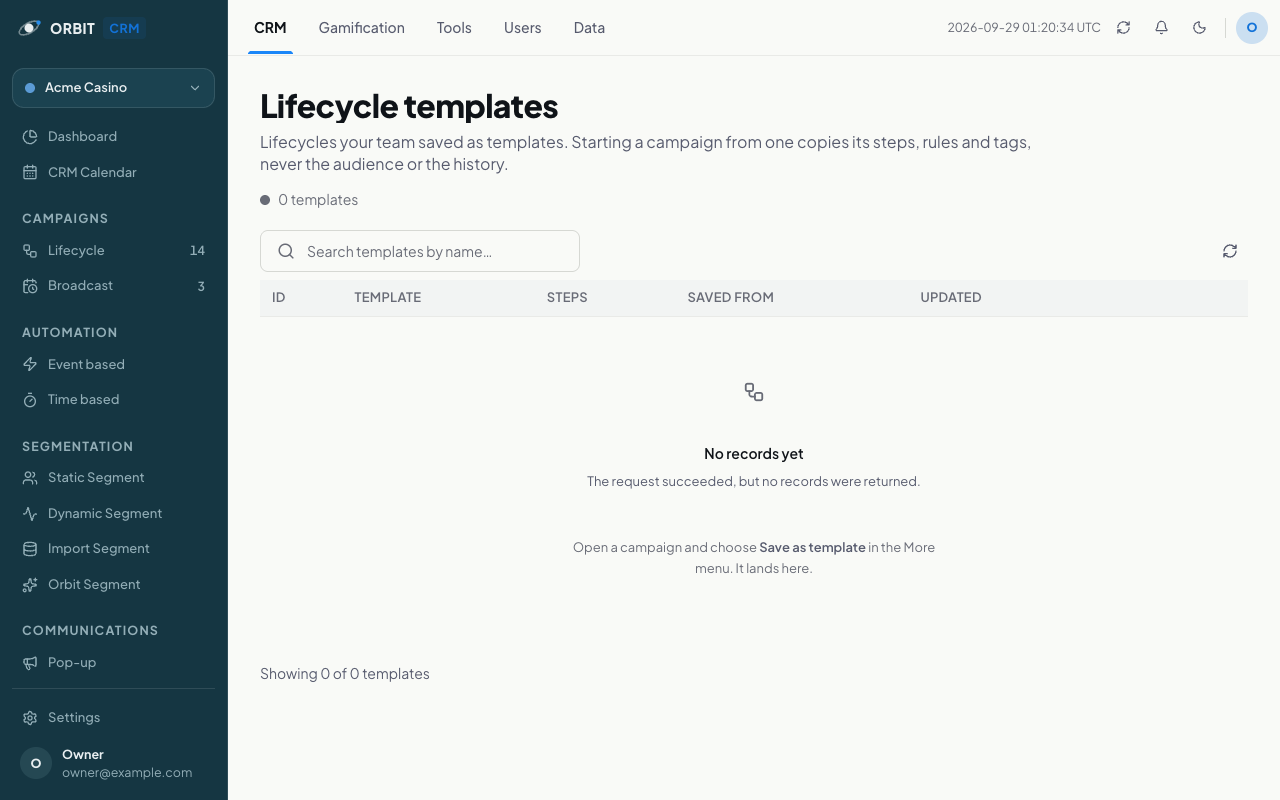
- You can also open CRM, then Templates, then Lifecycle. The title is Lifecycle templates. The line under it says a start from one of these copies the steps, the rules, and the tags, and never the audience or the history. With nothing saved, the table says “No records yet” and tells you to open a campaign and choose Save as template in the More menu.
- Search templates by name… filters the list. The Steps column is how many steps were stored. Saved from is the campaign it came from.
- Press Use this on the row. The button reads Creating… while it works. Orbit creates a new Lifecycle as a draft and opens it. The steps, the tags, and Stop & conversion are copied. The segment is empty, so you choose the audience on the new campaign. The history is a new campaign’s history, not the old one’s runs. The fixed dates on the copy are cleared. You still set Status to Active yourself. Use this does not send anything.
- The row menu is Delete template. The dialog says the template will be removed, and campaigns already created from it are not affected. Press Delete, or Cancel.
If Use this fails, the page prints the reason. A trigger the brand no longer allows is one of those reasons. Save a new template from a campaign that does not use that event, then delete the old template.