Appearance
Save a broadcast as a template, then start a new one that keeps the repeat and the settings, and asks you for the audience and the date.
- Open the broadcast. More, then Save as template. The dialog says it saves the recurrence, settings, tags, and rules. The audience and any fixed date are not saved. Both are chosen each time the template is used. Template name and an optional Description work the same way as on a Lifecycle. Press Save template.
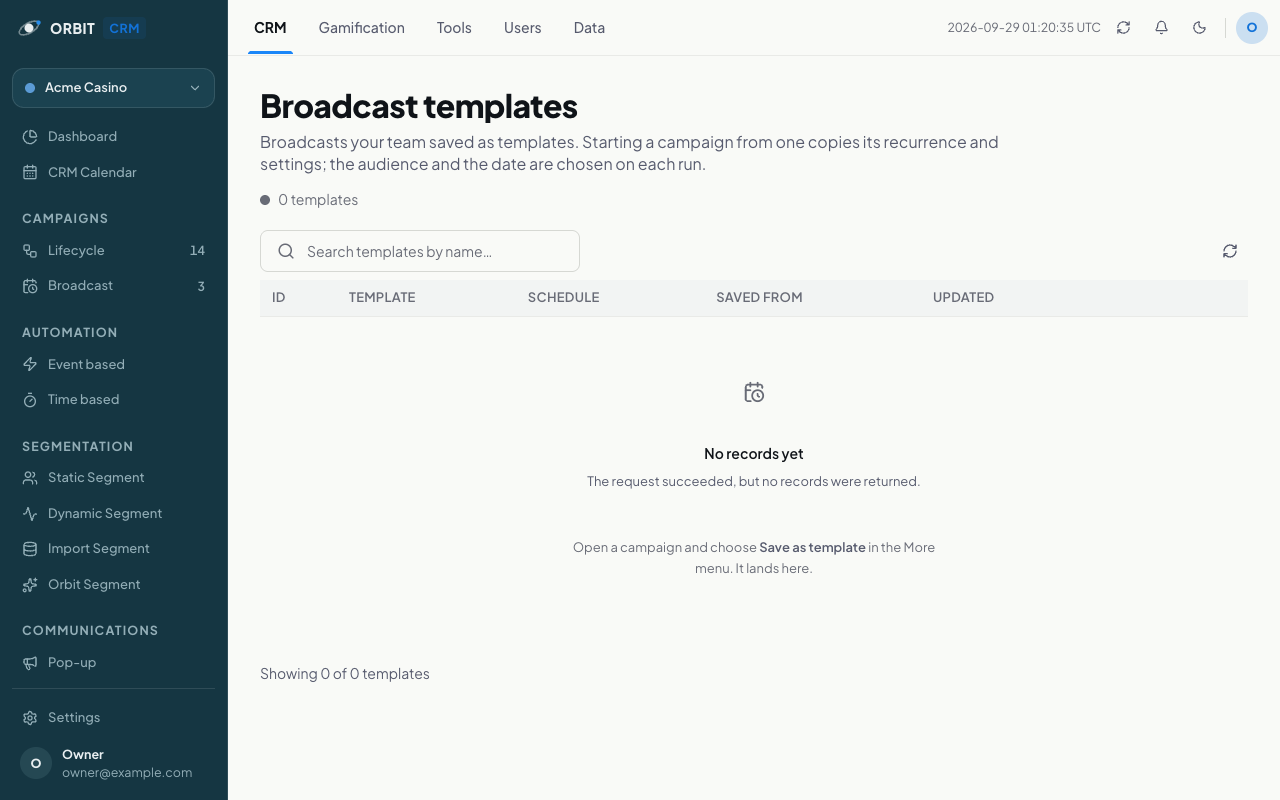
- Open CRM, then Templates, then Broadcast. The title is Broadcast templates. The line under it matches the dialog: starting a campaign from one copies the recurrence and the settings, and the audience and the date are chosen on each run.
- An empty list says to open a campaign and choose Save as template in the More menu. Create campaign from template on the Broadcast Create menu also opens this list; it says “Start from one of this brand's saved templates.”
- The Schedule column reads Once for a dated broadcast, Immediate for Send now, or Every with a count and d or wk for a repeat. A weekly broadcast can show Every 1 wk even when only some days were selected. Open the new campaign to see the weekdays.
- Press Use this. The new broadcast opens as a draft. Recurrence and settings are filled in. Segment is empty, so Main will say Segment is required until you pick one. A date that was on the original is not copied. Set it under Scheduling if this one should send once on a day. Set Status to Active when it should be eligible for Run due now.
- Delete template removes the row after you confirm. Campaigns already created from it stay.
Use this names the new campaign with the template’s name. Rename it on Main and press Save before you activate it, so the list does not fill with copies that share one name.