Appearance
Write an SMS and read how many billed messages the text is likely to be.
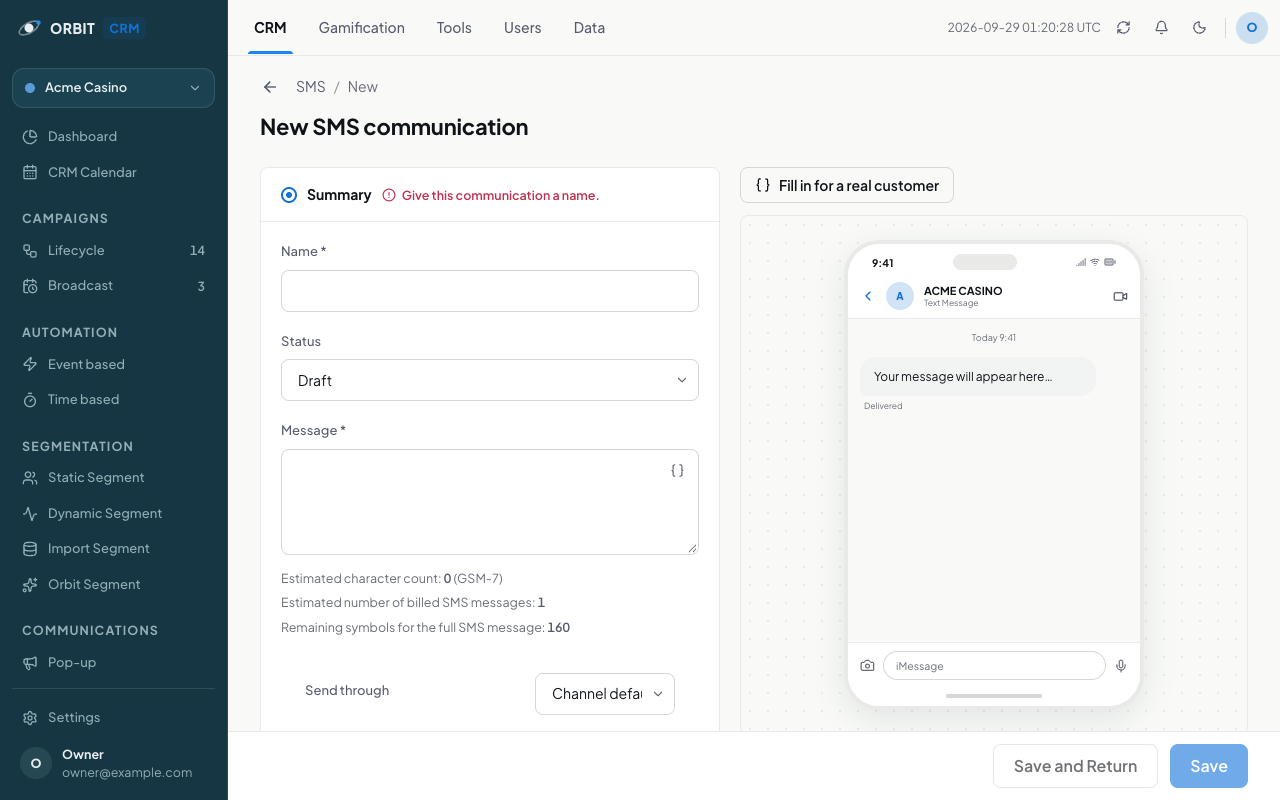
- Open CRM, then Communications, then SMS. Press Create. The title is New SMS communication.
- Fill Name. Status starts as Draft. Save stays off while the card says Give this communication a name. The list opens with Status: All, so the new Draft is on the list. See See every status on a communication list.
- Message is the text that sends. Under the box, the estimate updates as you type. Estimated units: is the count, then the encoding in parentheses: GSM-7, or “Unicode / UCS-2”. Estimated SMS segments: is how many segments that count fills. Remaining units in these segments: is the room left. The last line reads “Standard estimate: GSM-7 160/153 septets; Unicode/UCS-2 70/67 UTF-16 units. Provider billing may differ.”
- A GSM-7 message fits one segment up to 160 units, then 153 units a segment. A Unicode message fits one segment up to 70 units, then 67. An empty message is 0 units, GSM-7, 1 segment, and 160 remaining. A message that contains
{{waits for a resolved sample before those counts appear. The rules are in Read the SMS segment estimate. - Send through can stay on Channel default.
- The preview is a phone frame with the brand name, the bubble, and Delivered under it. Empty text shows “Your message will appear here…”.
- Press Save, or Save and Return.
The counts are an estimate on this page. They do not reserve the send. A campaign’s SMS step picks the saved communication.