Appearance
Create the email a campaign sends, and check the subject and the body in the preview before you leave.
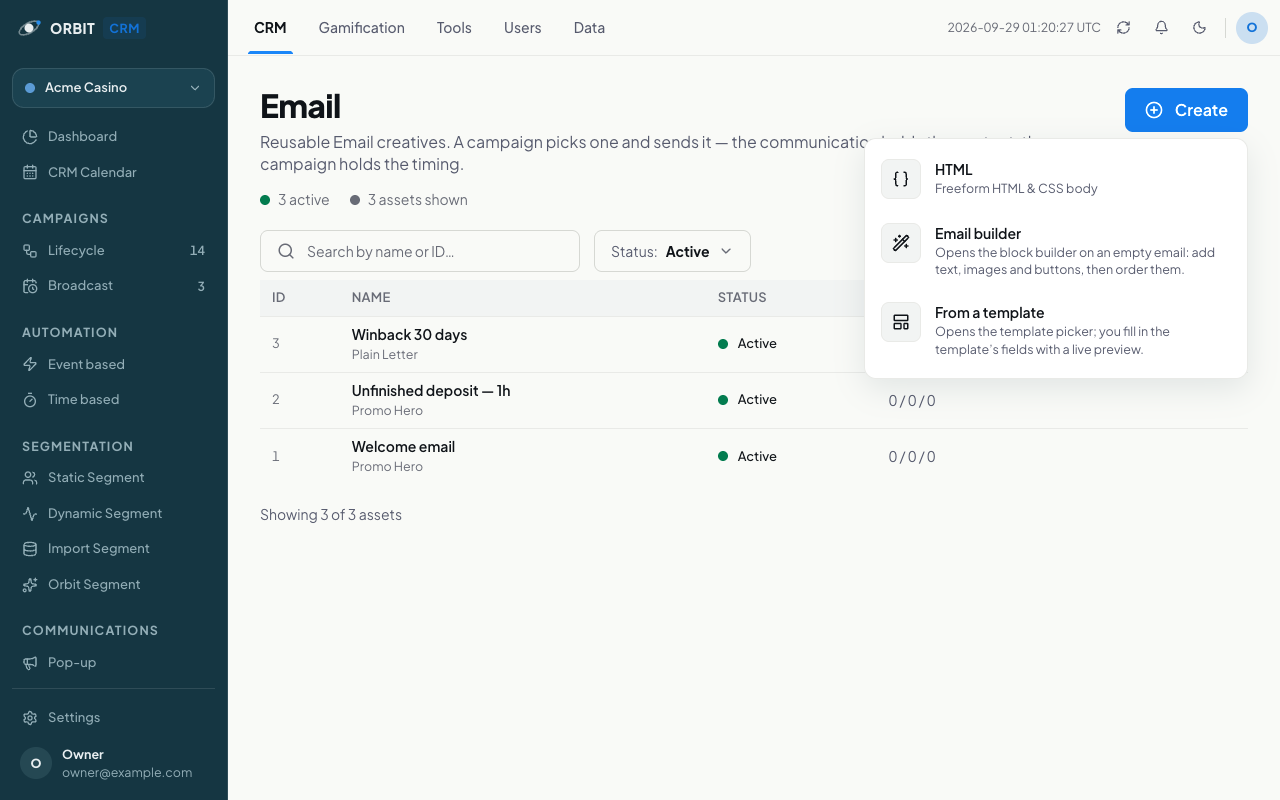
- Open CRM, then Communications, then Email. Press Create. HTML says “Freeform HTML & CSS body”. Email builder says “Opens the block builder on an empty email: add text, images and buttons, then order them.” From a template says “Opens the template picker; you fill in the template’s fields with a live preview.”
- Every mode asks for Name and Subject. Status starts as Draft. Send through can stay on Channel default. Save stays off while the card says Give this communication a name.
- HTML mode adds Preheader and Body (HTML & CSS). The preview shows the body at Desktop or Mobile width. It does not show the subject. The subject is what the inbox lists. The preheader is the short line some inboxes place next to it.
- From a template adds the same Preheader, then Template. Press Select, pick a template, and press Select Template. The fields under that are the template’s own. The preview is the template filled with those values. Until you pick one, it says “Pick a template to see the live preview”. Subject and preheader stay outside that frame.
- Email builder has no template and no preheader. Under Name, Subject, and Status, the builder lists Basic: Text, Image, Button, Divider, Spacer, and HTML, and Structure lists 2 columns and 3 columns. The note under Basic reads “Click a block to add it, or drag its handle to a gap in the email. Move buttons are also available in Structure and on each block.” Content, Structure, and Settings are the three tabs. Preview toggles the compiled body, again at Desktop or Mobile. Dragging, undo, and the block fields are in Build an email by dragging blocks.
- Press Save. A campaign’s Email step picks this saved communication. The step does not check Status, so a Draft can still be chosen. A real send still needs a subject and a body that is not empty. The builder toolbar is Preview and Download HTML. Preview shows the compiled body.