Appearance
See the extra fields already stored on customers of the active brand. This page lists them. Define field, for an Owner or a Manager, sets the type a lifecycle flow can write. That task is Define a custom field’s type.
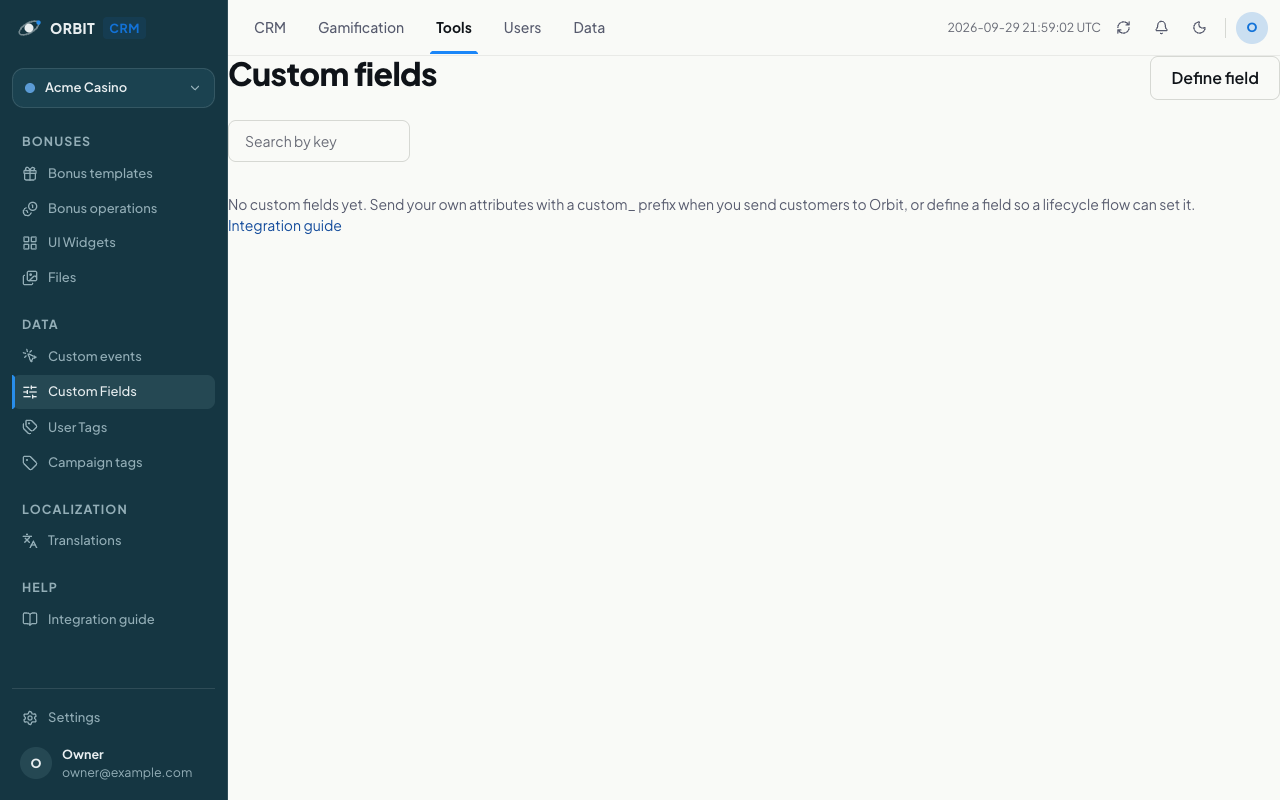
- Open Tools, then Data, then Custom Fields. The title is Custom fields. With no brand, the page says Select a brand to view custom fields.
- Search by key filters the table. The columns are Key, Customers with a value, Share, Value types seen, and Last profile update.
- Key is the stored name. Customers with a value is how many customers have something in that field. Share is that count against the customers on the brand. Value types seen lists the kinds of value that have arrived. Last profile update is the latest profile update among customers who currently have a value in that field. It is not the moment the field itself last changed.
- The footer counts the fields and the customers. When the list is long it adds Showing the top 500 fields. No matching fields. Try another key means the search missed.
No custom fields yet says to send your own attributes with a custom_ prefix when you send customers to Orbit. An Owner or a Manager also sees Integration guide on that empty page. Your Orbit admin can find the integration guide under Tools.
A field appears here after a customer profile has stored it, or after Define field saves a type. Search by key still filters the table.