Appearance
Read how the active brand is doing, and how that compares with the period just before.
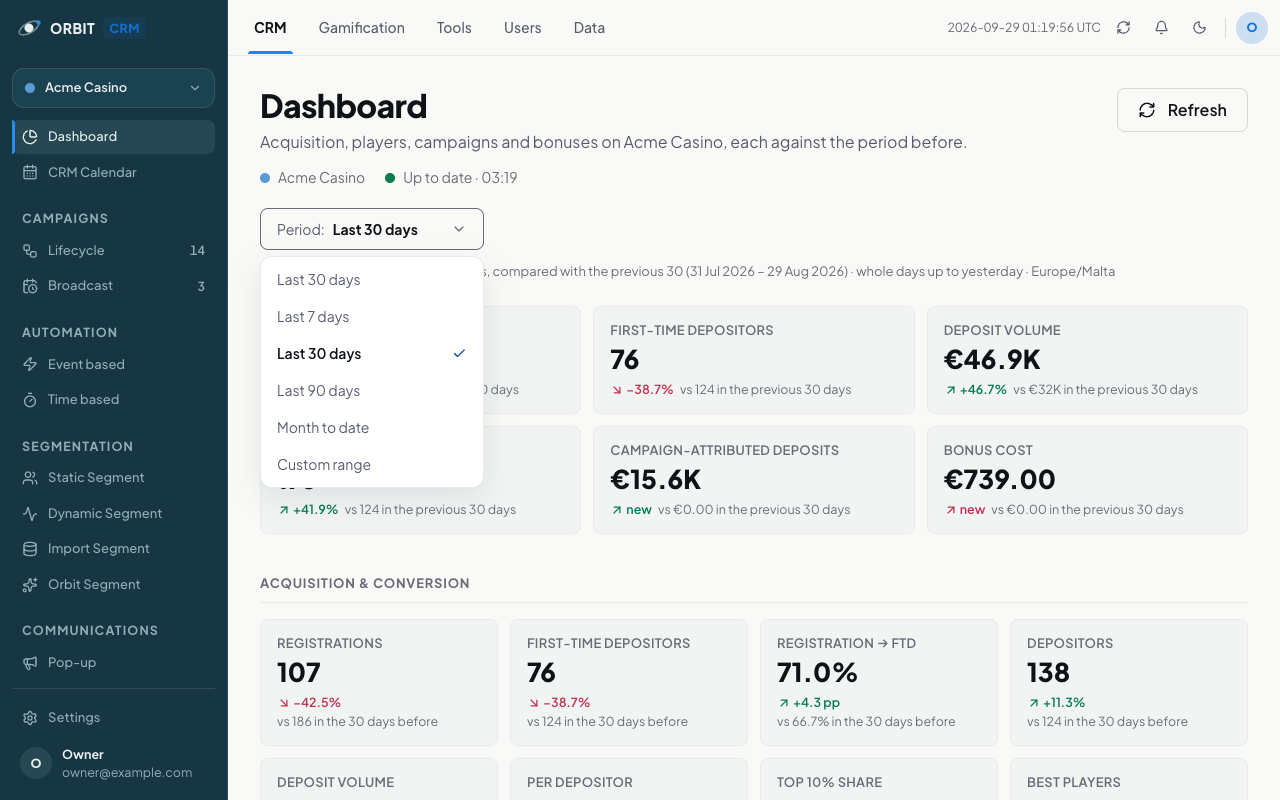
- Open CRM, then Dashboard. The title is Dashboard. The line under it names the brand and says the figures are each against the period before.
- Open Period. The choices are Last 7 days, Last 30 days, Last 90 days, Month to date, and Custom range. Each choice is listed once. A missing or unreadable period in the address is Last 30 days.
- Last 7 days, Last 30 days, and Last 90 days are whole days in the brand’s time zone, ending yesterday. Month to date runs from the 1st of this month through yesterday. On the 1st, the range is today alone.
- Choose Custom range. Start and End stack under the filter, then Apply. Apply stays off while a day is missing, half typed, invalid, after today, or earlier than Start. “End must not be before Start.” is shown on the End box. The checks are in Set the dashboard period.
- The line under the filters writes the range, the number of days, and the previous range it is compared with. A preset adds “whole days up to yesterday” and the brand time zone.
- Press Refresh. The tooltip is “Apply the newest events and recompute”. The period does not change.
Deposit and bonus money is in the brand currency.
Four groups follow.
Acquisition & conversion leads with Registrations. On a brand that takes deposits the next tiles read First-time depositors, Registration → FTD, and Depositors. On any other brand they read First-time buyers, Registration → 1st purchase, and Buyers. Each tile is compared with the same number of days before.
Under Players & retention the heading is Active players, or Active customers on a brand that does not take deposits. A player is active on a day with at least one approved deposit or one bet that day — a sports bet placed or settled, or a casino round. The first tile is Active players, then the period. Casino active and Sports active follow.
Campaigns opens as Campaign performance, with Export CSV and, when you can edit send costs, Costs & hold rate.
Bonuses opens as Bonus cost. Switch Realised cost or Granted value. Realised cost is bonus money that became withdrawable. Granted value is every bonus granted, used or not. The line under the switch states that definition. The Bonus cost tile in the strip at the top stays on realised cost even if this switch shows Granted value.
Tip
The name at the top of the side menu is the brand these figures belong to. Pick another brand there and the Dashboard reloads for that brand.