Appearance
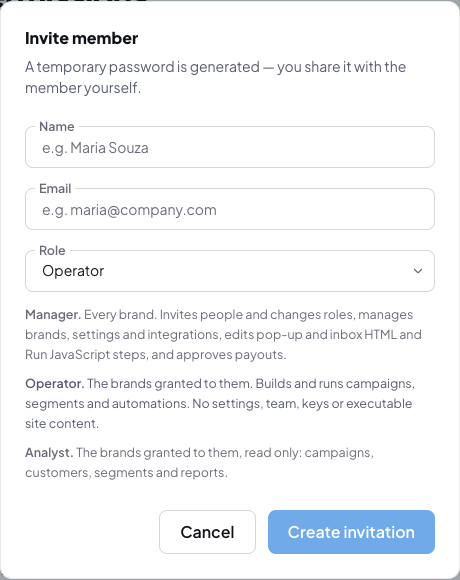
Invite member asks for a name, an email and a role. The roles you can give are Manager, Operator and Analyst. Owner is already on the member list and is not one of the invite choices.
Before you start: only an Owner or a Manager can manage the team. Anyone else sees Requires the Manager role, and the line Only organization Owners and Managers can manage the team. Ask a Manager if you need a role change or a new member invited.
- Open Settings, then Team & Permissions. The title is Team & Permissions. The subtitle says who can access this backoffice, that Owner and Manager reach every brand, that Operator builds on the brands granted to them, and that Analyst reads only.
- Press Invite member.
- Fill Name and Email. The placeholders are e.g. Maria Souza and e.g. maria@company.com.
- Set Role. The form opens on Operator. Under the field, all three roles are listed. Manager. Every brand. Invites people and changes roles, manages brands, settings and integrations, edits pop-up and inbox HTML and Run JavaScript steps, and approves payouts. Operator. The brands granted to them. Builds and runs campaigns, segments and automations. No settings, team, keys or executable site content. Analyst. The brands granted to them, read only: campaigns, customers, segments and reports.
- Press Create invitation. While it runs, the button reads Creating….
The next screen is Invitation created. It says the email can sign in with this temporary password, and shows the password once. Copy password copies it. The yellow line says the password is shown only once, to share it securely, and that the member should change it after first login. Press Done.
On the list, the Role column reads Owner, Manager, Operator or Analyst. A new Operator or Analyst still needs brands on Brand Access. Until then, the Brands cell can say No access. Manager shows All brands, by role. The same page has Permissions by role under the list.
Warning
Could not create the invitation. Try again. means the invite did not save. The password on Invitation created is not shown again after you press Done.