Appearance
Brand Access is where you grant or remove a brand for an Operator or an Analyst. Owner and Manager already have every brand from their role, so there is nothing to grant them here.
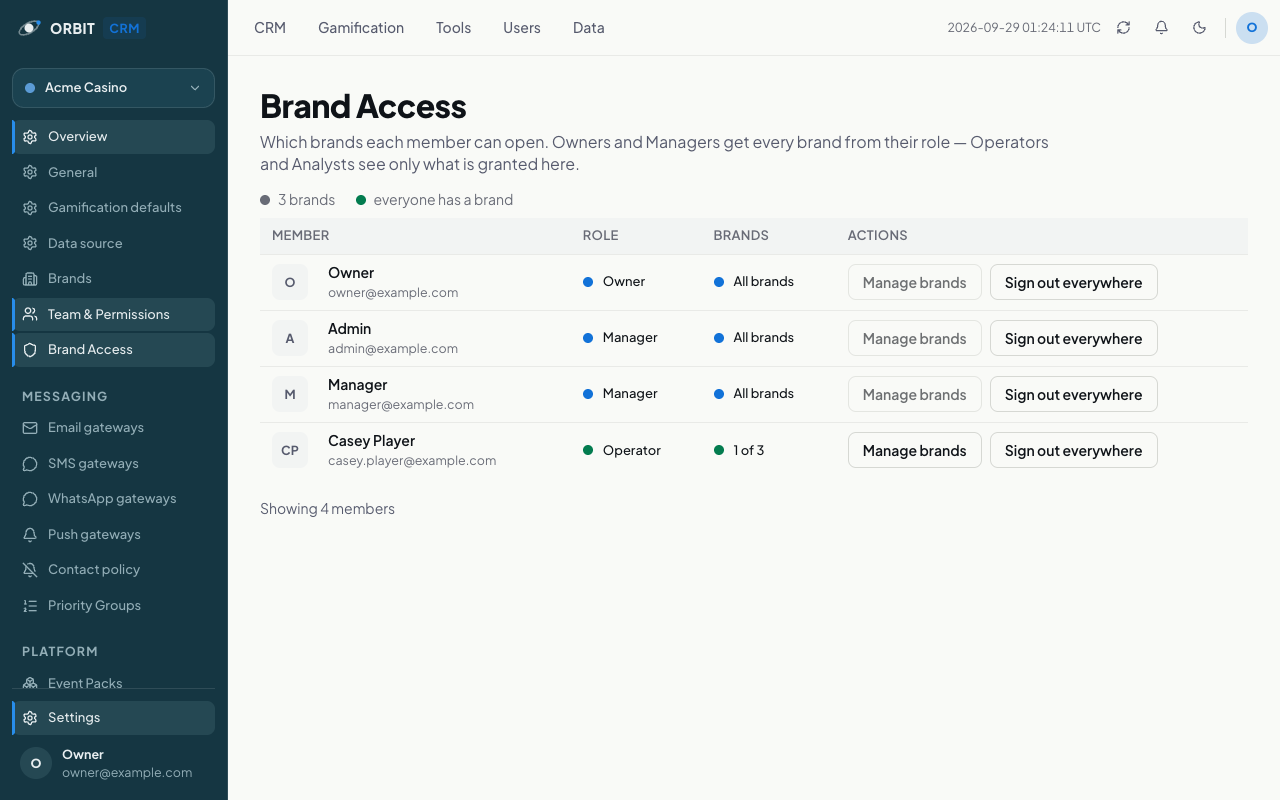
Before you start: only an Owner or a Manager can grant brand access. Otherwise the page says Requires the Manager role, and Only organization Owners and Managers can grant brand access. Ask a Manager if you are missing a brand.
- Open Settings, then Brand Access. The subtitle says which brands each member can open, that Owners and Managers get every brand from their role, and that Operators and Analysts see only what is granted here.
- Find the member. Role reads Operator or Analyst. Brands reads a count, such as 1 of 2, or No brands. Owner and Manager read All brands.
- Press Manage brands. On Owner and Manager the button is off. Its hint says Owners and Managers already have every brand — change the role first.
- In the dialog, the title is the member’s name. The line under it says each change saves on click and applies to their next request — they do not need to sign in again. Press a brand to grant it, or press it again to remove it. The brand name and its slug are on the row.
- Press Done.
The header counts brands, and says everyone has a brand, or how many members are with no brand. An Operator or Analyst with no brand can sign in and still have nothing to open. Grant at least one.
If the organization has no active brands, the dialog says This organization has no active brands yet. If a save fails, the box returns to what it was and the dialog says Could not save. Try again.
Tip
The Brands cell on Team & Permissions can also grant brands for Operator and Analyst. Brand Access is the full list, with Manage brands on each row.